Brief

A header-only library that gets you a semi-customizable window and (optionally) an OpenGL context, minimizing dependencies and hiding the complexities of doing proper windowing on each platform.
It's written with performance in mind; though performance is not the main focus of it. Maintainability, support for the defined feature set and ease of use are the primary targets of this library.
This library can:
- Open a window, handle input from keyboard/mouse/gamepad
- Draw while resizing the window
- Disable window decorations, but still be able to tile the window, customize the drag area, etc...
- Load OpenGL (without using a loader library)
- Or let you use your Graphics API of choice
- Set the window icon
- All of that, with as minimal dependencies as possible
The main idea of this library is that you shouldn't need to think about installing CMake, or messing with your build tool's link paths, just to be able to draw some stuff using the GPU. It should be easy to just drop in right inside of your project, and start developing, with full access to a relatively small source code size.
Additionally, this library:
- Provides custom implementations of several math functions, like sinf
- Doesn't use the standard C library (where possible)
- Provides convenience functions that can, for example, construct a perpsective projection matrix for OpenGL
- Automatically sets up OpenGL debugging infrastructure
Why should you use this library over, GLFW, SDL, SFML, ...?
Those libraries solve a much more general problem than the one most developers have:
- Create one or more windows
- Handle child/parent window relationships
- Provide aliases for common usermode operations (show file dialog, message box)
- Support many more platforms, even ones that don't include a windowing system.
- Support multiple graphics APIs for initialization.
- Provide a high level drawing interface.
- Provide a high level sound interface.
- Allow for entirely customized windows.
- And much more...
One common example is that almost every popular windowing library on Windows does not allow
the developer to draw while resizing or moving the window.
This is an introcacy of the Win32 API (and actually the same is true for MacOS), and the
recommended way is not exactly obvious to a new developer, or one unfamiliar with the
platform.
The library does the loading for you.
Here is all you need (and should need) to create a simple window.
By default it creates an OpenGL 3.3 core profile context:
#include "vd_fw.h"                                           // Include library
int main() {
    vd_fw_init(NULL);                                        // Initialize library
    while (vd_fw_running()) {                                // Check if the window is closed & gather events

        if (vd_fw_close_requested()) {
            vd_fw_quit();
        }

        glClearColor(0.5f, 0.3f, 0.2f, 1.0f);
        glClear(GL_COLOR_BUFFER_BIT | GL_DEPTH_BUFFER_BIT);
        vd_fw_swap_buffers();                                // Swap buffers
    }
    return 0;
}

#define VD_FW_IMPL                                           // Include implementation code
#include "vd_fw.h"
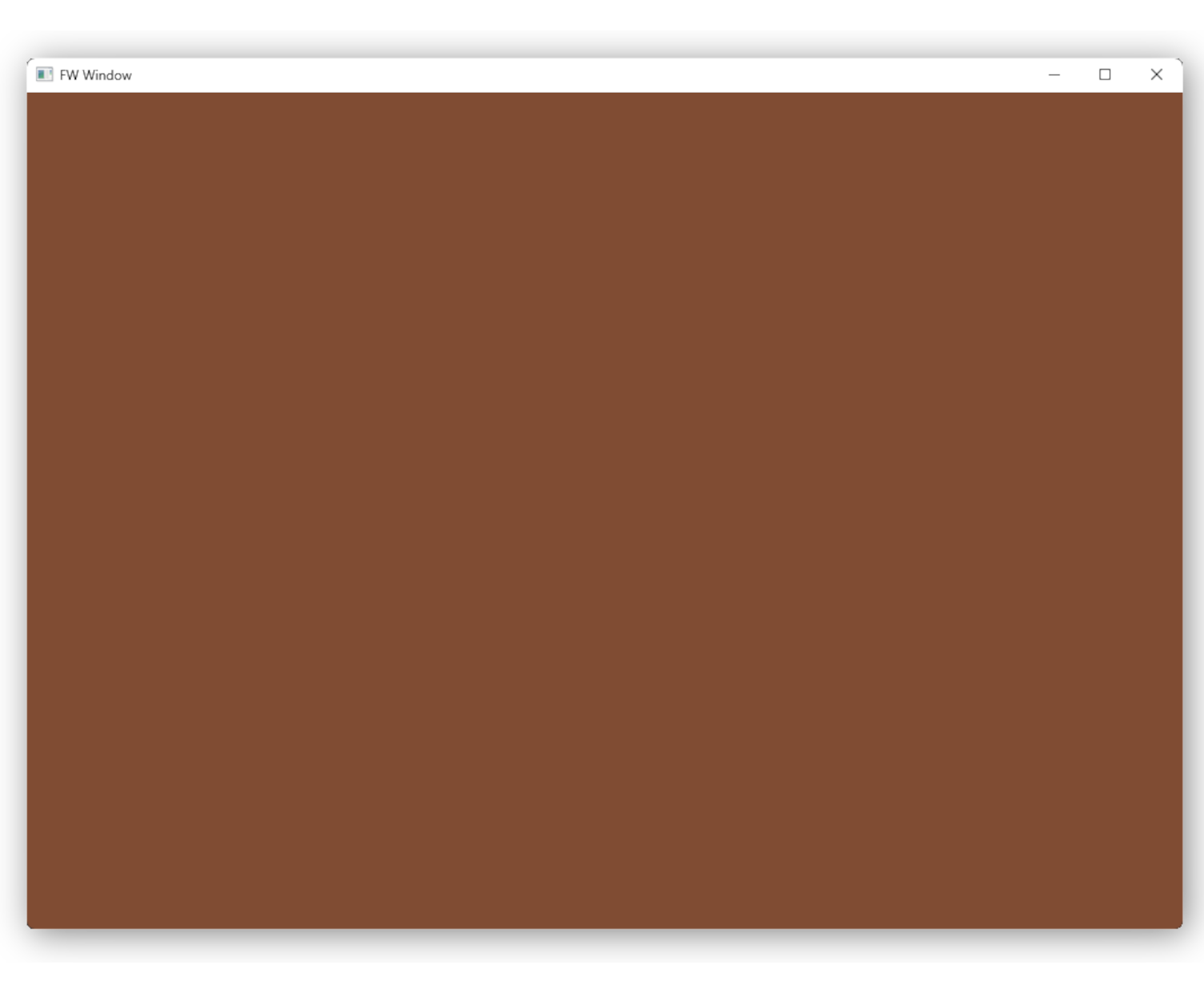
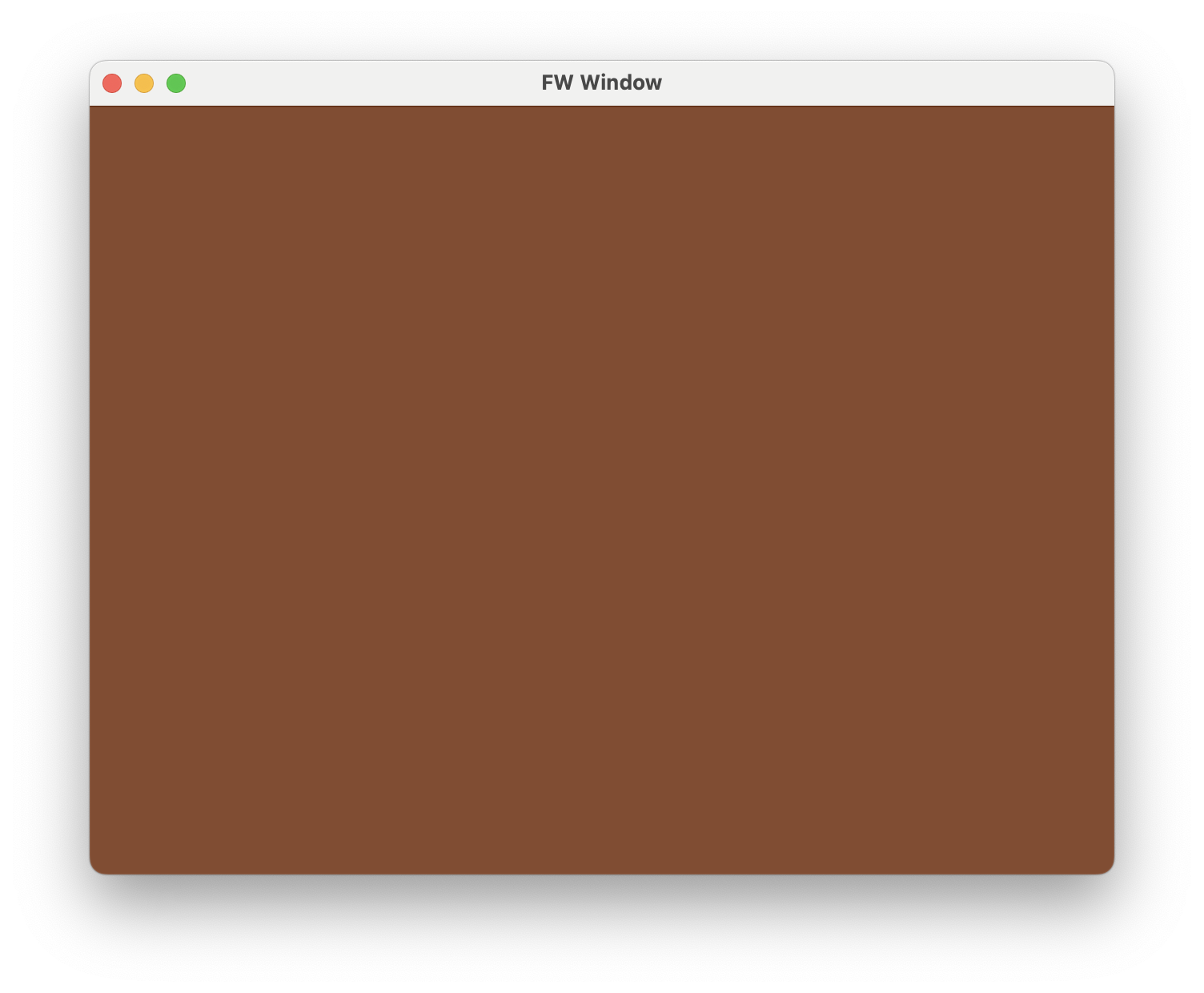
Linking & Dependencies
This library is distributed as a single, header-only file, thus the following instructions
are meant to be considered for your final application/dynamic library.
In general, I make use of the up-to-date platform specific APIs, that should be available
with every distribution of said platform's development environment.
Some preprocessor directives to set depending on your needs:
| Option | Description |
|---|---|
VD_FW_VERSION_MAJOR
|
Major version number of the library |
VD_FW_VERSION_MINOR
|
Minor version number of the library |
VD_FW_VERSION_PATCH
|
Patch version number of the library |
VD_FW_VERSION
|
Combined version (major, minor, patch) number of the library |
#define VD_FW_STATIC
|
Set to use this library statically. |
#define VD_FW_API // (static, extern, ...dllexport)
|
Set to change the function signature (useful for precompiling the library). |
#define VD_FW_INL
|
Set to change the inline function signature. |
#define VD_FW_NO_CRT
|
Options:
|
#define VD_FW_SIN
|
Can be predefined to your implementation of sinf.
Options:
|
#define VD_FW_COS
|
Can be predefined to your implementation of cosf.
Options:
|
#define VD_FW_TAN
|
Can be predefined to your implementation of tanf.
Options:
|
#define VD_FW_SQRT
|
Can be predefined to your implementation of sqrtf.
Options:
|
#define VD_FW_MEMCPY
|
Can be predefined to your implementation of memcpy.
Options:
|
#define VD_FW_MEMSET
|
Can be predefined to your implementation of memset.
Options:
|
#define VD_FW_LOG
|
Use to define the macro used by the library to log errors or other information. |
#define VD_FW_ENDIANNESS
|
Defines the byte order of the platform. Suggested to leave as is. |
#define VD_FW_CUSTOM_TYPEDEFS
|
Use to override the primitive typedefs used by the library. The defaults are:
|
#define VD_FW_GAMEPAD_COUNT_MAX 16
|
The maximum number of simulataneously connected gamepads that the library will support. Defaults to 16. |
#define VD_FW_GAMEPAD_DB_DEFAULT
|
Use to include (or not) the default gamepad DB. |
#define VD_FW_GAMEPAD_DB_DEFAULT_EXTERNAL
|
Use with VD_FW_GAMEPAD_DB_DEFAULT to instruct the library to include a C file generated by gamecontrollerdb.c. |
#define VD_FW_NCRECTS_MAX 16
|
The maximum number of non-client rectangles that will be supported by the library. Defaults to 16. |
#define VD_FW_CODEPOINT_BUFFER_COUNT 8
|
The size (in characters) of the character input history buffer. Defaults to 8. |
#define VD_FW_PREFER_DISCRETE_GPU// Or#define VD_FW_PREFER_INTEGRATED_GPU |
Change the preferred GPU for the OpenGL context. |
| Win32 Specific | |
#define VD_FW_WIN32_SUBSYSTEM// Can be one of the following:// VD_FW_WIN32_SUBSYSTEM_CONSOLE// VD_FW_WIN32_SUBSYSTEM_WINDOWS
|
Change the Subsystem (Windows only). |
#define VD_FW_WIN32_NO_LINKER_COMMENTS
|
Disable automatic linker comments (Windows only). |
Windows
With MSVC you don't really need to link anything since linker directives in the
translation unit that includes vd_fw.h are defined, so that the appropriate libraries
and subsystem are used. Additionally, several core libraries are dynamically loaded in vd_fw_init.
The only library required during compilation is kernel32.lib. For reference, here are the
libraries this library tries to load during vd_fw_init:
- User32.dll
- OpenGL32.dll
- Dwmapi.dll
- Gdi32.dll
- uxtheme.dll
- shell32.dll
- winmm.dll
- SetupAPI.dll
- Advapi32.dll
- xinput1_4.dll
- xinput1_3.dll
- xinput9_1_0.dll
This library tries as much as possible to reduce the amount of code brought in with the (notoriously large) Windows includes. This is done by manually declaring enumerations, preprocessor macros, function signatures, and structures right inside the implementation part of the library. This looks like this:
typedef struct VdFwtagRGBQUAD {
    VdFwBYTE    rgbBlue;
    VdFwBYTE    rgbGreen;
    VdFwBYTE    rgbRed;
    VdFwBYTE    rgbReserved;
} VdFwRGBQUAD;

typedef struct VdFwtagBITMAPINFO {
    VdFwBITMAPINFOHEADER    bmiHeader;
    VdFwRGBQUAD             bmiColors[1];
} VdFwBITMAPINFO, * VdFwLPBITMAPINFO, * VdFwPBITMAPINFO;

#define VD_FW_PROC_ChoosePixelFormat(name) int name(VdFwHDC hdc, const VdFwPIXELFORMATDESCRIPTOR *ppfd)
typedef VD_FW_PROC_ChoosePixelFormat(VdFwProcChoosePixelFormat);
static VdFwProcChoosePixelFormat *VdFwChoosePixelFormat;

#define VD_FW_PROC_CreateBitmap(name) VdFwHBITMAP name(int nWidth, int nHeight, VdFwUINT nPlanes, VdFwUINT nBitCount, const void* lpBits)
typedef VD_FW_PROC_CreateBitmap(VdFwProcCreateBitmap);
static VdFwProcCreateBitmap *VdFwCreateBitmap;
The relevant functions are then loaded when you call vd_fw_init:
HMODULE m             = LoadLibraryA("Gdi32.dll");
VdFwChoosePixelFormat     =     (VdFwProcChoosePixelFormat*)GetProcAddress(m, "ChoosePixelFormat");
VdFwCreateBitmap          =          (VdFwProcCreateBitmap*)GetProcAddress(m, "CreateBitmap");
Note that all platform specific functions/typedefs/structs are prefixed with 'VdFw' or 'VD_FW_' so as not to induce collisions in cases where you need to include Windows functionality yourself.
To set the subsystem of the application:
- Windows:
#define VD_FW_WIN32_SUBSYSTEM VD_FW_WIN32_SUBSYSTEM_WINDOWS - Console:
#define VD_FW_WIN32_SUBSYSTEM VD_FW_WIN32_SUBSYSTEM_CONSOLE
If you're on the Windows subsystem, but would still like a console for debugging purposes, this
can be done by setting VdFwInitInfo::gl_options::debug_on = 1 when calling
vd_fw_init.
This will allocate a console and set-up the relevant gl debug callback for you.
It's highly recommended to #define VD_FW_NO_CRT 1 so that the CRT is removed
when linking. This can reduce the final executable size by a factor of 10 (for small applications).
If you'd like to define options by yourself,
#define VD_FW_WIN32_NO_LINKER_COMMENTS before including the implementation.
MacOS
For MacOS, it's a bit different. with clang, you must link several frameworks (via
-framework framework_name). Additionally, -x objective-c must be used since the
Mac APIs use Objective-C.
- pthread (compiler flag)
- Cocoa
- Metal
- QuartzCore
- CoreGraphics
- IOSurface
- IOKit
- Foundation
- OpenGL
OpenGL on MacOS is deprecated, and including it will throw a ton of warnings about each function. Its maximum supported version of OpenGL is 4.1.
To disable those warnings, you can create the following header file and use it before and after including vd_fw.h:
#ifndef DISABLE_CLANG_DEPRECATIONS_H1
#define DISABLE_CLANG_DEPRECATIONS_H1
#if defined(__clang__)
#pragma clang diagnostic push
#pragma clang diagnostic ignored "-Wdeprecated-declarations"
#endif // defined(__clang__)
#else
#if defined(__clang__)
#pragma clang diagnostic pop
#endif // defined(__clang__)
#endif // DISABLE_CLANG_DEPRECATIONS_H1
Support
zlib License

(C) Copyright 2025-2026 Michael Dodis (michaeldodisgr@gmail.com)
 This software is provided 'as-is', without any express or implied
warranty.  In no event will the authors be held liable for any damages
arising from the use of this software.

Permission is granted to anyone to use this software for any purpose,
including commercial applications, and to alter it and redistribute it
freely, subject to the following restrictions:

1. The origin of this software must not be misrepresented; you must not
   claim that you wrote the original software. If you use this software
   in a product, an acknowledgment in the product documentation would be
   appreciated but is not required.
2. Altered source versions must be plainly marked as such, and must not be
   misrepresented as being the original software.
3. This notice may not be removed or altered from any source distribution.
As stated in the license, no warranty or guarantee is provided by the use of this library.
That being said, I will look at issues when I have the time, and/or if they are important to the core principles of this library.
Platforms
Due to platform limitations, platform-specific APIs and frameworks, vd_fw.h will never have support for some platforms. One example is Android, where Java is required.
Though, I'm still thinking about how this can be done easily, so I will leave the possibility open.
| Platform | Supported |
|---|---|
| Windows | Yes |
| MacOS | In Progress |
| Linux (X11) | In Progress |
| Linux (Wayland) | Planned |
| Linux (DRM) | Planned |
| iOS | Planned |
| Android | Planned |
| Web | Planned |
| FreeBSD | Not Planned |
| OpenBSD | Not Planned |
| NetBSD | Not Planned |
| Haiku | Not Planned |
| MacOS (Legacy/x86_64) | Not Planned |
| tvOS | Not Planned |
| visionOS | Not Planned |
| PlayStation Consoles | NDA |
| Nintendo Consoles | NDA |
Revisions
1.1.0
xx/xx/xxxx
- Distribution documentation for each platform
- Win32: DirectManipulation Support
1.0.0
xx/xx/xxxxInitial Release:
- Win32: Full Support
- MacOS: Full Support
- Linux (X11): Full Support
- OpenGL Extensions
- Vulkan/Metal Support
0.0.2
03/11/2025In Development version
- Win32: Support gamepads
- Win32: Support gamepad rumble via WriteFile (for DualShock)
- Win32: Support DirectX API
- MacOS: Windowing/Input Support with live resize
- GamepadDB: Database definition, entry parsing
0.0.1
12/10/2025In Development version
- Win32 support
Attributions
-
CookedNick
For the render thread with Win32 example in jai -
idrassi
For the ported jai code for Win32 example -
melak47
For the borderless window with Win32 example -
TheoBendixson
For his Handmade Mac platform layer -
Ofek
For the display monitor enumeration code sample
Tutorials
A collection of tutorials for how to use the library.
These do not show proper code, nor do they show correct OpenGL API usage, but they show various features of vd_fw.h
We will start by creating a simple window, and continue with:
- Making it borderless
- Drawing a rectangle
- Setting the drag area
- Drawing some 3D geometry
- Handling input in a user-friendly way
Additionally, several samples are available here, which map to several parts of the tutorial.
This tutorial is written in C, but you can safely use C++ with it
Main Loop
Let's look at the main loop.
#define VD_FW_NO_CRT 1                                       // Disable CRT, this is highly recommended,
                                                             // if you know what you're doing.
#define VD_FW_WIN32_SUBSYSTEM VD_FW_WIN32_SUBSYSTEM_WINDOWS  // Disable console (Windows)
#include "vd_fw.h"

int main(int argc, char const *argv[])
{
    vd_fw_init(NULL);                                        // Initialize library
    vd_fw_set_vsync_on(1);                                   // Enable VSYNC

    while (vd_fw_running()) {                                // Check if the window is closed

        if (vd_fw_close_requested()) {                       // Close the window if the
            vd_fw_quit();                                    // user requested it
        }

        int w, h;
        vd_fw_get_size(&w, &h);                              // Get window size, in pixels.

        glViewport(0, 0, w, h);                              // Setup viewport
        glClearColor(0.5f, 0.3f, 0.2f, 1.0f);                // Select clear color
        glClear(GL_COLOR_BUFFER_BIT);                        // Clear

        vd_fw_swap_buffers();                                // Swap buffers
    }

    return 0;
}

#define VD_FW_IMPL                                           // Include implementation
#include "vd_fw.h"
This will create a window, that can be moved and resized.

Note that resizing or moving the window will never pause the render loop, with OpenGL or any other API.
Choose OpenGL Version
To specify the OpenGL version, create a VdFwInitInfo struct, populate the
VdFwInitInfo::gl::version member, and pass it to vd_fw_init.
VdFwInitInfo init_info = {};
init_info.gl.version = VD_FW_GL_VERSION_4_5; // Set OpenGL Version
vd_fw_init(&init_info);
For reference, here's all of the possible versions:
typedef enum {
    VD_FW_GL_VERSION_BASIC = 0,
    VD_FW_GL_VERSION_1_0   = 1,
    VD_FW_GL_VERSION_1_2   = 12,
    VD_FW_GL_VERSION_1_3   = 13,
    VD_FW_GL_VERSION_1_4   = 14,
    VD_FW_GL_VERSION_1_5   = 15,
    VD_FW_GL_VERSION_2_0   = 20,
    VD_FW_GL_VERSION_2_1   = 21,
    VD_FW_GL_VERSION_3_0   = 30,
    VD_FW_GL_VERSION_3_1   = 31,
    VD_FW_GL_VERSION_3_2   = 32,
    VD_FW_GL_VERSION_3_3   = 33,
    VD_FW_GL_VERSION_4_0   = 40,
    VD_FW_GL_VERSION_4_1   = 41,
    VD_FW_GL_VERSION_4_2   = 42,
    VD_FW_GL_VERSION_4_3   = 43,
    VD_FW_GL_VERSION_4_4   = 44,
    VD_FW_GL_VERSION_4_5   = 45,
    VD_FW_GL_VERSION_4_6   = 46,
} VdFwGlVersion;
Create a Borderless Window
To create a borderless window, create a VdFwInitInfo struct, set
VdFwInitInfo::window_options::borderless to 1, and pass it to vd_fw_init.
VdFwInitInfo init_info = {};
init_info.window_options.borderless = 1;
vd_fw_init(&init_info);
This will create a borderless window, that can be moved (by dragging any part of the window), and resized.

Create a Shader Program
Let's create a simple 2D rectangle application.
We'll create some in-source shaders, and compile them, as we would in any OpenGL application. If you'd like to follow along, here are the shaders we'll be using:
#define VERTEX_SOURCE \
"#version 330 core                                                                                                 \n" \
"layout (location = 0) in vec2 aPos;                                                                               \n" \
"                                                                                                                  \n" \
"uniform vec2 rect_off;                                                                                            \n" \
"uniform vec2 rect_size;                                                                                           \n" \
"uniform mat4 projection;                                                                                          \n" \
"                                                                                                                  \n" \
"                                                                                                                  \n" \
"void main()                                                                                                       \n" \
"{                                                                                                                 \n" \
"    gl_Position = projection * vec4(aPos * rect_size + rect_off, 0.0, 1.0f);                                      \n" \
"}                                                                                                                 \n" \

#define FRAGMENT_SOURCE \
"#version 330 core                                                                                                 \n" \
"out vec4 FragColor;                                                                                               \n" \
"                                                                                                                  \n" \
"uniform vec4 rect_color;                                                                                          \n" \
"                                                                                                                  \n" \
"void main()                                                                                                       \n" \
"{                                                                                                                 \n" \
"    FragColor = rect_color;                                                                                       \n" \
"}                                                                                                                 \n" \
And the typical OpenGL shader compilation code:
const char *vertex_shader_source = VERTEX_SOURCE;
const char *fragment_shader_source = FRAGMENT_SOURCE;

// Compile shaders
GLuint vertex_shader = glCreateShader(GL_VERTEX_SHADER);
glShaderSource(vertex_shader, 1, &vertex_shader_source, 0);
glCompileShader(vertex_shader);

GLuint fragment_shader = glCreateShader(GL_FRAGMENT_SHADER);
glShaderSource(fragment_shader, 1, &fragment_shader_source, 0);
glCompileShader(fragment_shader);

GLuint program = glCreateProgram();
glAttachShader(program, vertex_shader);
glAttachShader(program, fragment_shader);
glLinkProgram(program);
In most tutorials, you'll be prompted to do error checking by doing glGetShaderiv,
then glGetShaderInfoLog and printing it out...
This library provides a convenience function (and more) to do that, which will also log the errors:
GLuint vertex_shader   = vd_fw_compile_shader(GL_VERTEX_SHADER,   VERTEX_SOURCE);
GLuint fragment_shader = vd_fw_compile_shader(GL_FRAGMENT_SHADER, FRAGMENT_SOURCE);
For error logging, make sure to set VdFwInitInfo::gl::debug_on to 1 when initializing the library.
Here's the vd_fw_init call we'll be using for the rest of these tutorials:
vd_fw_init(& (VdFwInitInfo) {
    .gl = {
        .version = VD_FW_GL_VERSION_3_3,
        .debug_on = 1,
    },
    .window_options = {
        .borderless = 1,
    }
});
Draw a Rectangle
Continuing from the previous section, we create a vertex buffer for a 2d rectangle:
float rect_vertices[] = {
     0.0f,  0.0f,
    +1.0f,  0.0f,
     0.0f, +1.0f,
    +1.0f, +1.0f
};

unsigned int VBO, VAO;
glGenVertexArrays(1, &VAO);
glGenBuffers(1, &VBO);
glBindVertexArray(VAO);
glBindBuffer(GL_ARRAY_BUFFER, VBO);
glBufferData(GL_ARRAY_BUFFER, sizeof(rect_vertices), rect_vertices, GL_STATIC_DRAW);
glVertexAttribPointer(0, 2, GL_FLOAT, GL_FALSE, 2 * sizeof(float), (void*)0);
glEnableVertexAttribArray(0);
And now for drawing a rectangle.
We'll use orthographic projection. vd_fw.h provides a simple utility function to compute it:
vd_fw_u_ortho
glUseProgram(program);
glBindVertexArray(VAO);

{
    float projection[16];
    vd_fw_u_ortho(0.f, (float)w, (float)h, 0.f, -1.f, 1.f, projection);
    glUniformMatrix4fv(glGetUniformLocation(program, "projection"), 1, GL_FALSE, projection);
}
To test that the coordinate transformation is working, we'll map the top left of the rectangle
to the mouse. To get the mouse position & buttons, use vd_fw_get_mouse_state or
vd_fw_get_mouse_statef:
float mx, my;
vd_fw_get_mouse_statef(&mx, &my);

glUniform4f(glGetUniformLocation(program, "rect_color"), 1.f, 0.f, 0.f, 1.f);
glUniform2f(glGetUniformLocation(program, "rect_size"), 40.f, 40.f);
glUniform2f(glGetUniformLocation(program, "rect_off"), mx, my);
glDrawArrays(GL_TRIANGLE_STRIP, 0, 4);

glUseProgram(0);
glBindVertexArray(0);

Set the Drag Area
Let's draw a simple window frame using our rectangle "renderer":
glUniform4f(glGetUniformLocation(program, "rect_color"), 0.2f, 0.2f, 0.2f, 1.f);
glUniform2f(glGetUniformLocation(program, "rect_size"), (float)w, 30.f);
glUniform2f(glGetUniformLocation(program, "rect_off"), 0.f, 0.f);
glDrawArrays(GL_TRIANGLE_STRIP, 0, 4);

In a borderless window, there is no specified non-client area. So to allow the user to drag the window
only from a specific place, we'll use vd_fw_set_ncrects.
int draggable_rect[4] = {
    0,  // left
    0,  // top
    w,  // right
    30, // bottom
};
vd_fw_set_ncrects(draggable_rect, 0, 0);
Et voila!

Now, for the 2 last parameters to vd_fw_set_ncrects:
- count: Number of excluded rects
- rects: Pointer to array of
countrects
Let's draw a red 'close' button in our title bar, and if the mouse is over it, darken it:
float button_color[4] = {1.0f, 0.0f, 0.0f, 1.0f};
int mouse_inside_close_button =
    (mx > ((float)w - 30.f)) &&
    (my > (0.f) && my < (30.f));

if (mouse_inside_close_button) {
    button_color[0] = 0.7f;
    button_color[1] = 0.0f;
    button_color[2] = 0.0f;
    button_color[3] = 1.0f;
}

glUniform4f(glGetUniformLocation(program, "rect_color"), button_color[0],
                                                         button_color[1],
                                                         button_color[2],
                                                         button_color[3]);
glUniform2f(glGetUniformLocation(program, "rect_size"), 30.f, 30.f);
glUniform2f(glGetUniformLocation(program, "rect_off"), (float)w - 30.f, 0.f);
glDrawArrays(GL_TRIANGLE_STRIP, 0, 4);

As you can see, we can still drag the window even if the mouse is on the button.
To fix that, we have to update our call to vd_fw_set_ncrects:
int draggable_rect[4] = {
    0,  // left
    0,  // top
    w,  // right
    30, // bottom
};

int exclude_rects[1][4] = {
    {
        w - 30, // left
        0,      // top
        w,      // right
        30,     // bottom
    }
};
vd_fw_set_ncrects(draggable_rect, 1, exclude_rects);
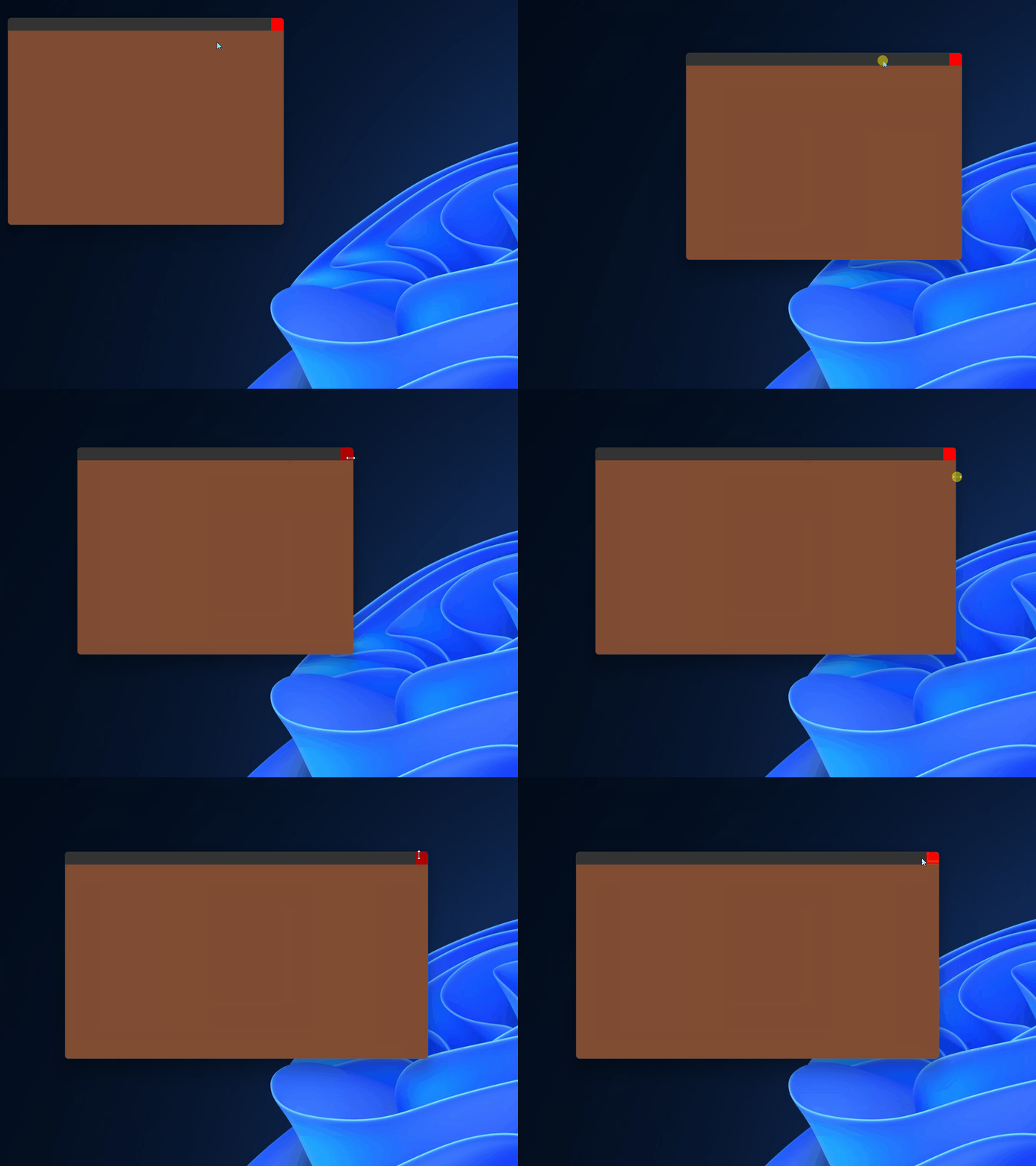
The code is straightforward; we exclude the exact position of our red button.
Draw a Cube
Let's render some 3D geometry. For this, we'll need separate shaders; if you're following the tutorial in order, here they are:
#define VERTEX_SOURCE3D \
"#version 330 core                                        \n" \
"layout (location = 0) in vec3 aPos;                      \n" \
"layout (location = 1) in vec2 aTexCoord;                 \n" \
"                                                         \n" \
"out vec2 TexCoord;                                       \n" \
"                                                         \n" \
"uniform mat4 projection;                                 \n" \
"uniform mat4 view;                                       \n" \
"                                                         \n" \
"void main()                                              \n" \
"{                                                        \n" \
"    gl_Position = projection * view * vec4(aPos, 1.0f);  \n" \
"    TexCoord = vec2(aTexCoord.x, 1.0 - aTexCoord.y);     \n" \
"}                                                        \n" \

#define FRAGMENT_SOURCE3D \
"#version 330 core                                        \n" \
"out vec4 FragColor;                                      \n" \
"                                                         \n" \
"in vec2 TexCoord;                                        \n" \
"                                                         \n" \
"uniform sampler2D texture1;                              \n" \
"                                                         \n" \
"void main()                                              \n" \
"{                                                        \n" \
"    FragColor = texture(texture1, TexCoord);             \n" \
"}                                                        \n" \
We'll also create a 3d cube, and a checkerboard texture:
float vertices3d[] = {
    -0.5f, -0.5f, -0.5f,  0.0f, 0.0f,
     0.5f, -0.5f, -0.5f,  1.0f, 0.0f,
     0.5f,  0.5f, -0.5f,  1.0f, 1.0f,
     0.5f,  0.5f, -0.5f,  1.0f, 1.0f,
    -0.5f,  0.5f, -0.5f,  0.0f, 1.0f,
    -0.5f, -0.5f, -0.5f,  0.0f, 0.0f,

    -0.5f, -0.5f,  0.5f,  0.0f, 0.0f,
     0.5f, -0.5f,  0.5f,  1.0f, 0.0f,
     0.5f,  0.5f,  0.5f,  1.0f, 1.0f,
     0.5f,  0.5f,  0.5f,  1.0f, 1.0f,
    -0.5f,  0.5f,  0.5f,  0.0f, 1.0f,
    -0.5f, -0.5f,  0.5f,  0.0f, 0.0f,

    -0.5f,  0.5f,  0.5f,  1.0f, 0.0f,
    -0.5f,  0.5f, -0.5f,  1.0f, 1.0f,
    -0.5f, -0.5f, -0.5f,  0.0f, 1.0f,
    -0.5f, -0.5f, -0.5f,  0.0f, 1.0f,
    -0.5f, -0.5f,  0.5f,  0.0f, 0.0f,
    -0.5f,  0.5f,  0.5f,  1.0f, 0.0f,

     0.5f,  0.5f,  0.5f,  1.0f, 0.0f,
     0.5f,  0.5f, -0.5f,  1.0f, 1.0f,
     0.5f, -0.5f, -0.5f,  0.0f, 1.0f,
     0.5f, -0.5f, -0.5f,  0.0f, 1.0f,
     0.5f, -0.5f,  0.5f,  0.0f, 0.0f,
     0.5f,  0.5f,  0.5f,  1.0f, 0.0f,

    -0.5f, -0.5f, -0.5f,  0.0f, 1.0f,
     0.5f, -0.5f, -0.5f,  1.0f, 1.0f,
     0.5f, -0.5f,  0.5f,  1.0f, 0.0f,
     0.5f, -0.5f,  0.5f,  1.0f, 0.0f,
    -0.5f, -0.5f,  0.5f,  0.0f, 0.0f,
    -0.5f, -0.5f, -0.5f,  0.0f, 1.0f,

    -0.5f,  0.5f, -0.5f,  0.0f, 1.0f,
     0.5f,  0.5f, -0.5f,  1.0f, 1.0f,
     0.5f,  0.5f,  0.5f,  1.0f, 0.0f,
     0.5f,  0.5f,  0.5f,  1.0f, 0.0f,
    -0.5f,  0.5f,  0.5f,  0.0f, 0.0f,
    -0.5f,  0.5f, -0.5f,  0.0f, 1.0f
};

unsigned int VBO3D, VAO3D;
glGenVertexArrays(1, &VAO3D);
glGenBuffers(1, &VBO3D);
glBindVertexArray(VAO3D);
glBindBuffer(GL_ARRAY_BUFFER, VBO3D);
glBufferData(GL_ARRAY_BUFFER, sizeof(vertices3d), vertices3d, GL_STATIC_DRAW);
// position attribute
glVertexAttribPointer(0, 3, GL_FLOAT, GL_FALSE, 5 * sizeof(float), (void*)0);
glEnableVertexAttribArray(0);
// texture coord attribute
glVertexAttribPointer(1, 2, GL_FLOAT, GL_FALSE, 5 * sizeof(float), (void*)(3 * sizeof(float)));
glEnableVertexAttribArray(1);

unsigned int checkerboard[] = {
    0xFFFFFFFF, 0xFF000000,
    0xFF000000, 0xFFFFFFFF
};

GLuint texture;
glGenTextures(1, &texture);
glBindTexture(GL_TEXTURE_2D, texture);
glTexParameteri(GL_TEXTURE_2D, GL_TEXTURE_WRAP_S, GL_REPEAT);
glTexParameteri(GL_TEXTURE_2D, GL_TEXTURE_WRAP_T, GL_REPEAT);
glTexParameteri(GL_TEXTURE_2D, GL_TEXTURE_MIN_FILTER, GL_NEAREST);
glTexParameteri(GL_TEXTURE_2D, GL_TEXTURE_MAG_FILTER, GL_NEAREST);
glTexImage2D(GL_TEXTURE_2D, 0, GL_RGBA8, 2, 2, 0, GL_RGBA, GL_UNSIGNED_BYTE, checkerboard);
glGenerateMipmap(GL_TEXTURE_2D);
Since we'll be rendering both 3D and 2D, we'll need to make sure GL_DEPTH_TEST is only enabled for the 3D part of our rendering:
glDisable(GL_DEPTH_TEST);
glUseProgram(program);
glBindVertexArray(VAO);

float projection[16];
vd_fw_u_ortho(0.f, (float)w, (float)h, 0.f, -1.f, 1.f, projection);
glUniformMatrix4fv(glGetUniformLocation(program, "projection"), 1, GL_FALSE, projection);
// ... Rest of 2D rendering code

glEnable(GL_DEPTH_TEST);
// 3D rendering code
Before our main loop, we're also going to add some variables for the camera:
float camera_position[3] = {0.f, 0.f, -2.f};
float camera_yaw   = 0.f;
float camera_pitch = 30.f;
float deg2rad = 3.14159265359f / 180.f;
float camera_speed = 2.f;
Now for rendering the cube depending on camera position & rotation:
glEnable(GL_DEPTH_TEST);
float fw = (float)w;
float fh = (float)h;

// Compute forward vector
float camera_forward[3] = {
    VD_FW_COS(deg2rad * camera_pitch) * VD_FW_SIN(deg2rad * camera_yaw),
    VD_FW_SIN(deg2rad * camera_pitch),
    VD_FW_COS(deg2rad * camera_pitch) * VD_FW_COS(deg2rad * camera_yaw)
};

// Normalize forward vector
float camera_forward_len = VD_FW_SQRT(
    camera_forward[0] * camera_forward[0] +
    camera_forward[1] * camera_forward[1] +
    camera_forward[2] * camera_forward[2]);

camera_forward[0] = camera_forward[0] / camera_forward_len;
camera_forward[1] = camera_forward[1] / camera_forward_len;
camera_forward[2] = camera_forward[2] / camera_forward_len;

float camera_ref_up[3] = {0.f, 1.f, 0.f};

// Compute right vector by taking the cross product of foward x up
float camera_right[3] = {
    camera_forward[1] * camera_ref_up[2] - camera_forward[2] * camera_ref_up[1],
    camera_forward[2] * camera_ref_up[0] - camera_forward[0] * camera_ref_up[2],
    camera_forward[0] * camera_ref_up[1] - camera_forward[1] * camera_ref_up[0],
};

// Normalize right vector
float camera_right_len = VD_FW_SQRT(
    camera_right[0] * camera_right[0] +
    camera_right[1] * camera_right[1] +
    camera_right[2] * camera_right[2]);

camera_right[0] = camera_right[0] / camera_right_len;
camera_right[1] = camera_right[1] / camera_right_len;
camera_right[2] = camera_right[2] / camera_right_len;

glViewport(0, 0, w, h - 30);
glUseProgram(program3d);
glBindVertexArray(VAO3D);

float projection[16] = {0.f};
vd_fw_u_perspective(60.f, fw / fh, 0.1f, 100.0f, projection);

float view[16] = {0.f};
float ctar[3] = {
    camera_position[0] + camera_forward[0],
    camera_position[1] + camera_forward[1],
    camera_position[2] + camera_forward[2]};
float cup[3]  = {0.f, 1.f, 0.f};
vd_fw_u_lookat(camera_position, ctar, cup, view);

glActiveTexture(GL_TEXTURE0);
glBindTexture(GL_TEXTURE_2D, texture);

glUseProgram(program3d);
glUniformMatrix4fv(glGetUniformLocation(program3d, "projection"), 1, GL_FALSE, projection);
glUniformMatrix4fv(glGetUniformLocation(program3d, "view"), 1, GL_FALSE, view);
glUniform1i(glGetUniformLocation(program3d, "texture1"), 0);

glBindVertexArray(VAO3D);

glDrawArrays(GL_TRIANGLES, 0, 36);
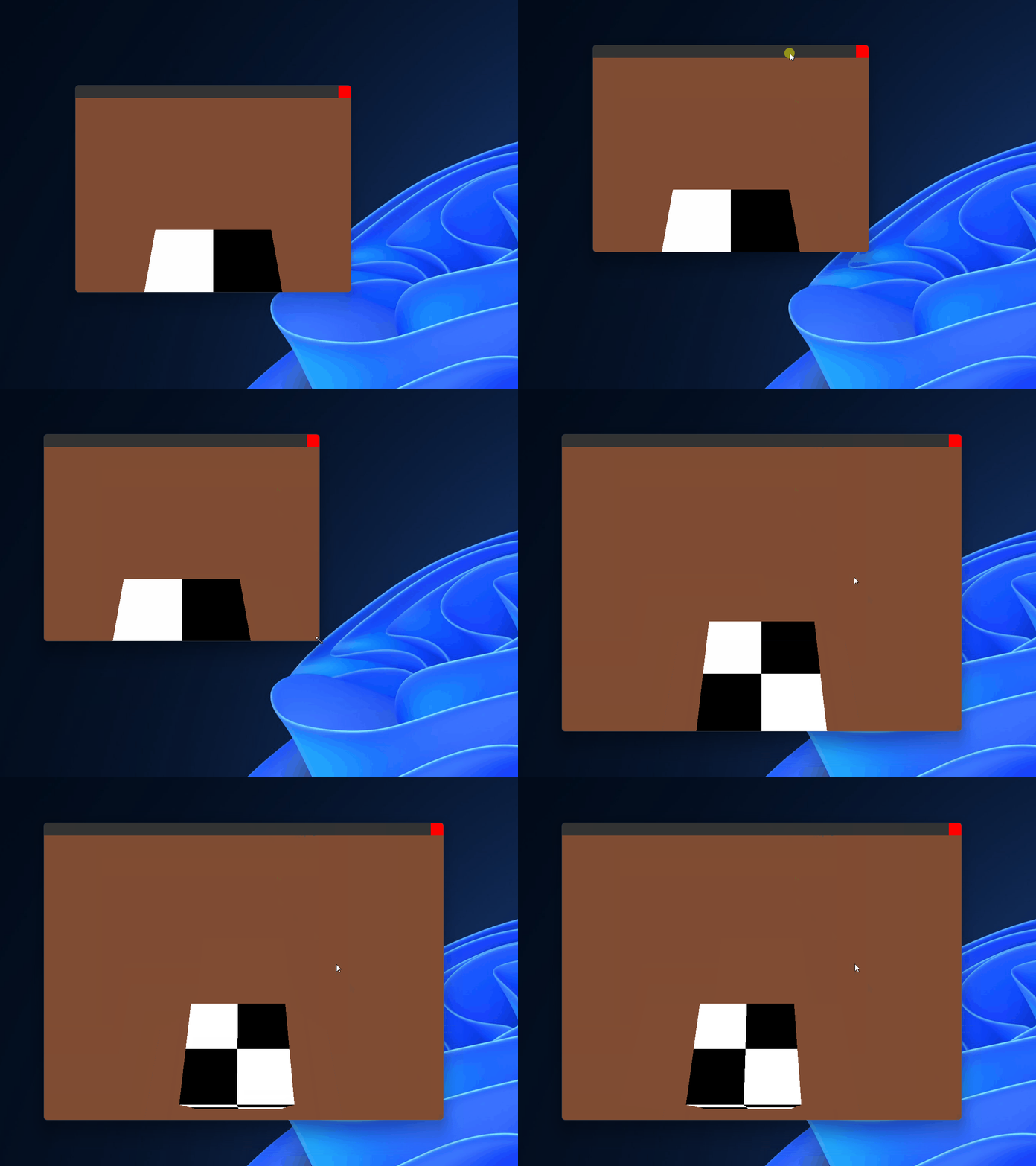
And here we have a 3d cube! As you can see, I've already added the movement of the camera for demonstration purposes, but we'll have a look at input in the next section.
Handle Input
We've already seen some mouse state handling, but let's look at the main functions used for input:
vd_fw_delta_s, to get delta time since last framevd_fw_get_mouse_state, to read the mouse statevd_fw_get_mouse_delta, to read how much the mouse moved since last framevd_fw_get_key_down, to check if a key is currently downvd_fw_get_key_pressed, to check if a key was just pressedvd_fw_set_mouse_locked, to hide and confine the mouse to the window
So let's add some camera manipulation, we'll start by getting the delta time in seconds:
float ds = vd_fw_delta_s();
It's also common to lock the mouse and hide it, so let's do that as well at the start of the application:
vd_fw_set_mouse_locked(1);
Here's also the snippet moving the camera:
// Get key states
float fwdir = (float)(vd_fw_get_key_down('W') - vd_fw_get_key_down('S'));
float rgdir = (float)(vd_fw_get_key_down('A') - vd_fw_get_key_down('D'));
float updir = (float)(vd_fw_get_key_down('Q') - vd_fw_get_key_down('E'));

// Compute overall move direction
float camera_move_dir[3] = {
    fwdir * camera_forward[0] + rgdir * camera_right[0] + updir * camera_ref_up[0],
    fwdir * camera_forward[1] + rgdir * camera_right[1] + updir * camera_ref_up[1],
    fwdir * camera_forward[2] + rgdir * camera_right[2] + updir * camera_ref_up[2],
};

// Normalize move direction, if it's length is not too small (i.e. we're not pressing any keys)
float camera_dir_lensq =
    camera_move_dir[0] * camera_move_dir[0] +
    camera_move_dir[1] * camera_move_dir[1] +
    camera_move_dir[2] * camera_move_dir[2];

if (camera_dir_lensq > 0.0001f) {
    // Normalize move direction and apply it to the camera's position
    float camera_move_dir_len = VD_FW_SQRT(camera_dir_lensq);

    camera_move_dir[0] = camera_move_dir[0] / camera_move_dir_len;
    camera_move_dir[1] = camera_move_dir[1] / camera_move_dir_len;
    camera_move_dir[2] = camera_move_dir[2] / camera_move_dir_len;

    camera_position[0] += camera_move_dir[0] * camera_speed * ds;
    camera_position[1] += camera_move_dir[1] * camera_speed * ds;
    camera_position[2] += camera_move_dir[2] * camera_speed * ds;
}
Finally, inside of our rendering loop, we compute the camera's pitch and yaw based on the mouse delta:
if (vd_fw_get_mouse_locked()) {
    float mouse_delta_x, mouse_delta_y;
    vd_fw_get_mouse_delta(&mouse_delta_x, &mouse_delta_y);

    camera_yaw   += mouse_delta_x;
    camera_pitch -= mouse_delta_y;
};

if (camera_pitch < -89.9f) camera_pitch = -89.9f;
if (camera_pitch > +89.9f) camera_pitch = +89.9f;

if (camera_yaw > +360.f) camera_yaw -= 360.f;
if (camera_yaw < -360.f) camera_yaw += 360.f;

float camera_forward[3] = {
    VD_FW_COS(deg2rad * camera_pitch) * VD_FW_SIN(deg2rad * camera_yaw),
    // ..
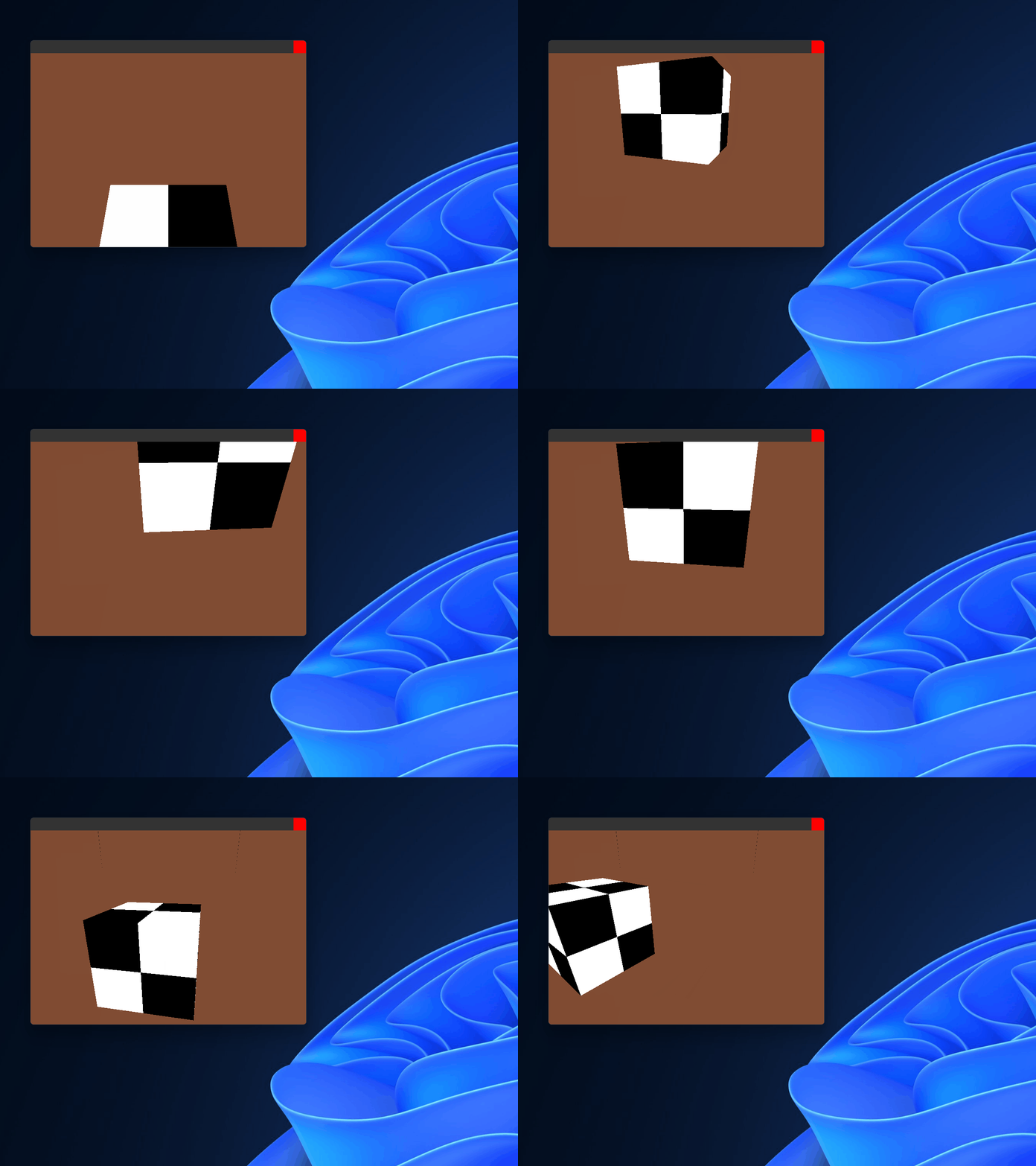
Okay, we can move the cube, but we can't really exit the application easily, since the mouse is confined. Let's make 'Shift + F1' unlock the mouse:
if (vd_fw_get_key_pressed(VD_FW_KEY_F1) && vd_fw_get_key_down(VD_FW_KEY_LSHIFT)) {
    vd_fw_set_mouse_locked(!vd_fw_get_mouse_locked());
}
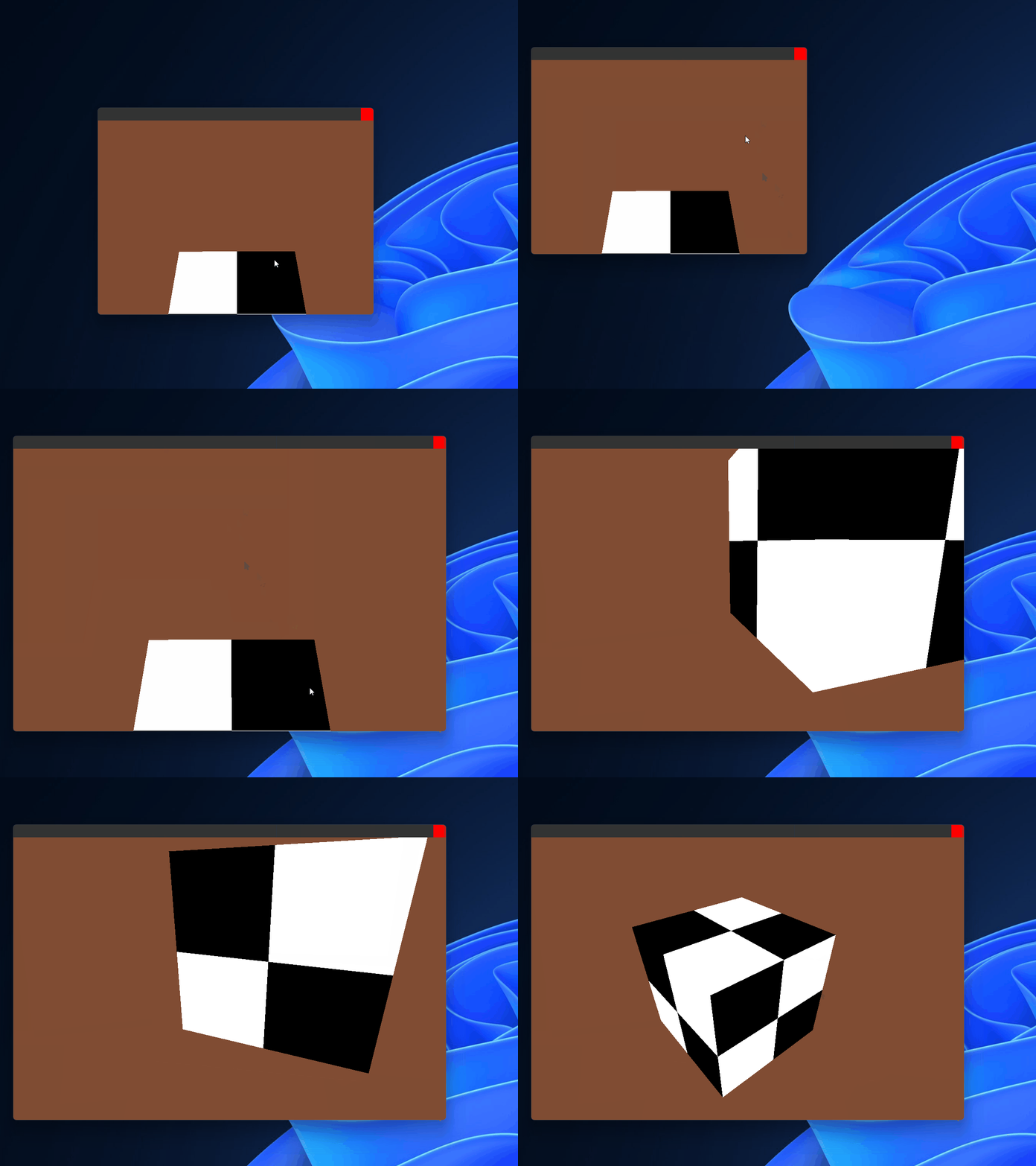
And we finally have a resizable, draggable window with our own custom button and cube.
Set the Window Icon
To set the window icon, call:
// Image format must be in ARGB little-endian (i.e 0xAARRGGBB)
vd_fw_set_app_icon(pixels, width, height);
If you're following along with the tutorial, we will temporarily change the window to have decorations, so that we can see the icon drawn by Windows in the caption:
vd_fw_init(& (VdFwInitInfo) {
    .gl = {
        .version = VD_FW_GL_VERSION_3_3,
        .debug_on = 0,
    },
    .window_options = {
        .borderless = 0, // <---
    }
});
Let's draw a simple red-ish gradient from top to bottom, and set that as our icon:
unsigned int icon_pixels[32*32];
for (int y = 0; y < 32; ++y) {
    for (int x = 0; x < 32; ++x) {

        float t = ((float)(y * 32 + x)) / (32.f * 32.f);

        t = (VD_FW_SIN(t * 2) + 1.0f) * 0.5f;

        float r = 0.7f * t;
        float g = 0.2f * t;
        float b = 0.0f * t;

        icon_pixels[y * 32 + x] = 0xFF << 24                       |
                                  ((unsigned char)(r * 255)) << 16 |
                                  ((unsigned char)(g * 255)) <<  8 |
                                  ((unsigned char)(b * 255)) <<  0;
    }
}
vd_fw_set_app_icon(icon_pixels, 32, 32);
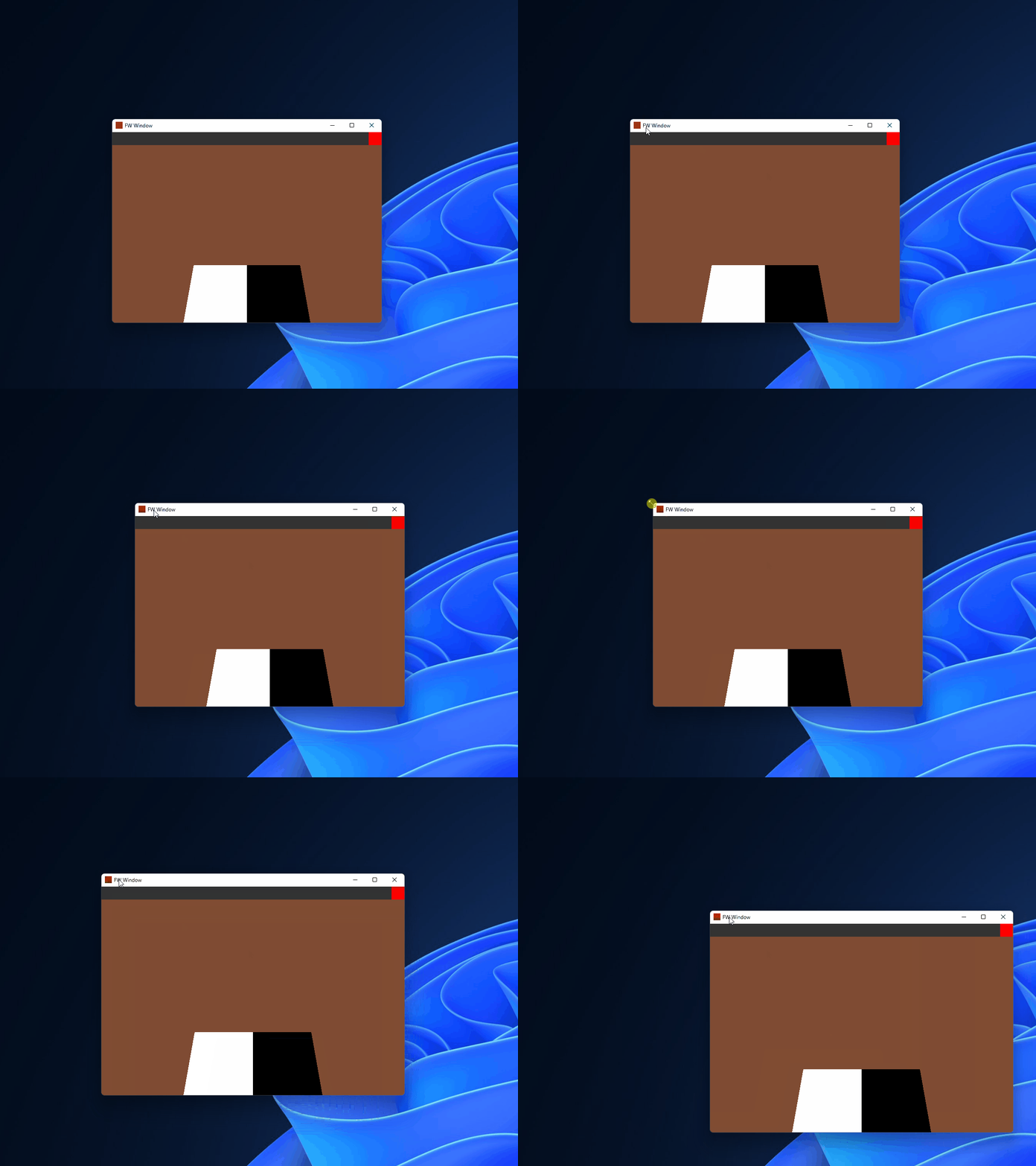
On Windows, the icon will also be shown in:
- The App Bar (Taskbar), and
- The Window switcher (Alt + Tab)
Minimize and Maximize the Window
Let's add 2 more buttons for minimizing and maximizing the window:
{
    float button_color[4] = {0.7f, 0.7f, 0.7f, 1.0f};
    int mouse_inside_maximize_button =
        (mx > ((float)w - 30.f * 2.f)) && (mx < ((float)w - 30.f)) &&
        (my > (0.f) && my < (30.f));

    if (mouse_inside_maximize_button) {
        button_color[0] = 0.9f;
        button_color[1] = 0.9f;
        button_color[2] = 0.9f;
        button_color[3] = 1.0f;
    }

    glUniform4f(glGetUniformLocation(program, "rect_color"), button_color[0], button_color[1], button_color[2], button_color[3]);
    glUniform2f(glGetUniformLocation(program, "rect_size"), 20.f, 20.f);
    glUniform2f(glGetUniformLocation(program, "rect_off"), (float)w - 30.f * 2.f, 5.f);
    glDrawArrays(GL_TRIANGLE_STRIP, 0, 4);
}

{
    float button_color[4] = {0.7f, 0.7f, 0.7f, 1.0f};
    int mouse_inside_minimize_button =
        (mx > ((float)w - 30.f * 3.f)) && (mx < ((float)w - 30.f * 2.f)) &&
        (my > (0.f) && my < (30.f));

    if (mouse_inside_minimize_button) {
        button_color[0] = 0.9f;
        button_color[1] = 0.9f;
        button_color[2] = 0.9f;
        button_color[3] = 1.0f;
    }

    glUniform4f(glGetUniformLocation(program, "rect_color"), button_color[0], button_color[1], button_color[2], button_color[3]);
    glUniform2f(glGetUniformLocation(program, "rect_size"), 20.f, 5.f);
    glUniform2f(glGetUniformLocation(program, "rect_off"), (float)w - 30.f * 3.f, 20.f);
    glDrawArrays(GL_TRIANGLE_STRIP, 0, 4);
}
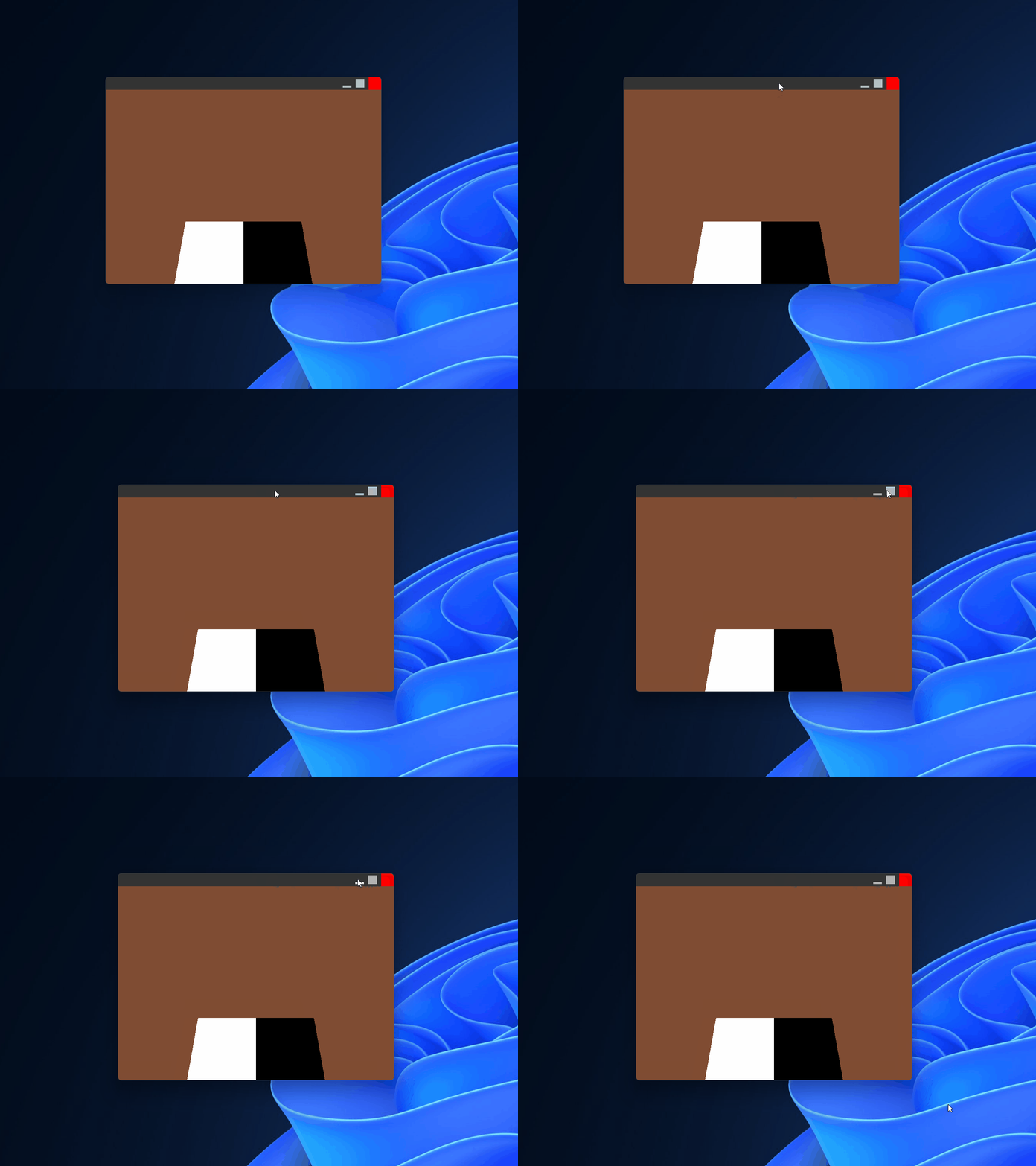
And to implement the buttons:
if (mouse_inside_maximize_button && vd_fw_get_mouse_clicked(VD_FW_MOUSE_BUTTON_LEFT)) {
    int is_maximized;
    vd_fw_get_maximized(&is_maximized);
    if (is_maximized) {
        vd_fw_normalize();
    } else {
        vd_fw_maximize();
    }
}

if (mouse_inside_minimize_button && vd_fw_get_mouse_clicked(VD_FW_MOUSE_BUTTON_LEFT)) {
    vd_fw_minimize();
}
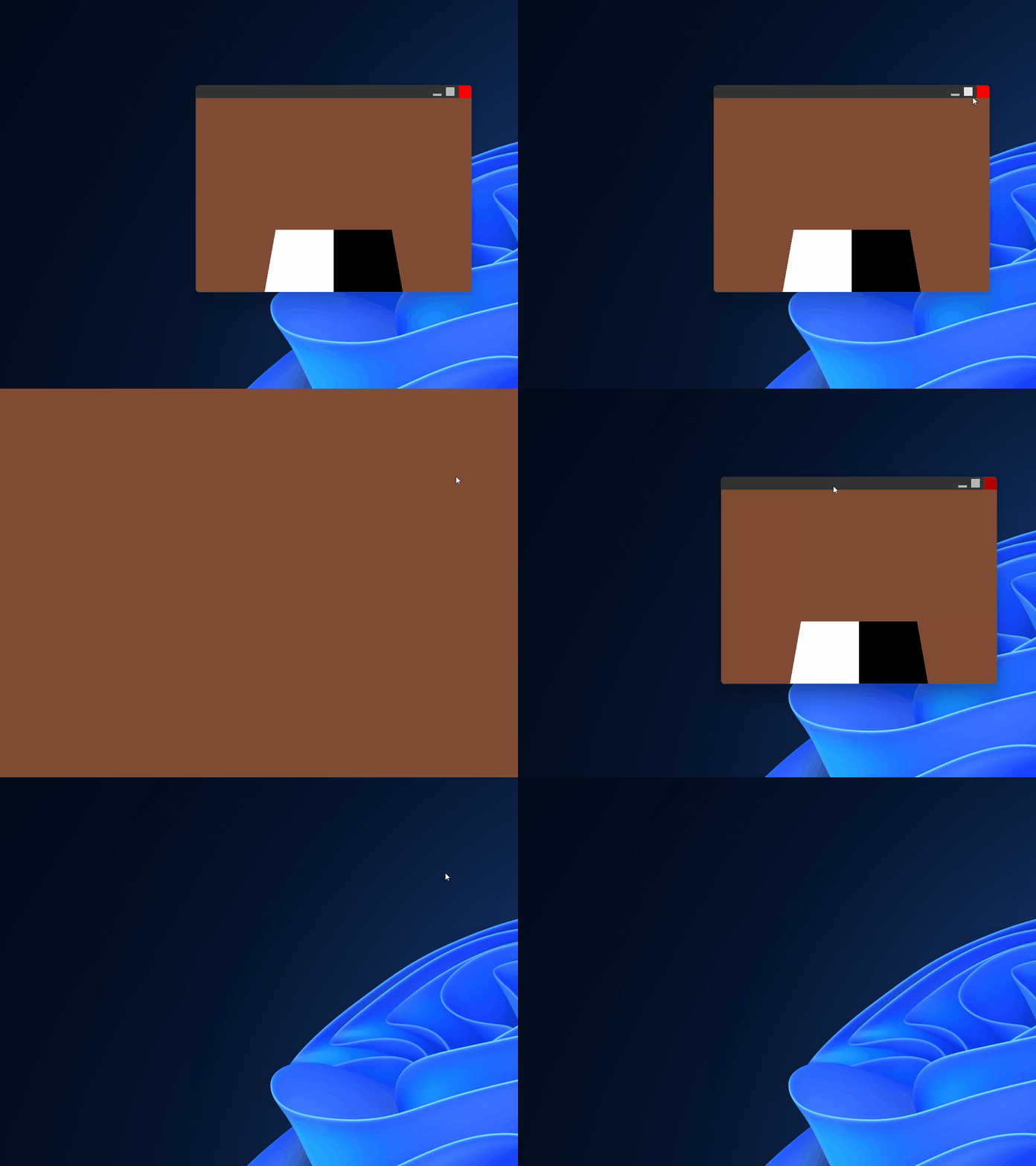
Finally, we have a window that can be maximized and minized with customizable buttons.
Use the Discrete GPU
The OpenGL specification makes no distinction between the presence of multiple GPUs inside the target system; one will be automatically selected based on vendor preference settings host OS, and other factors that the developer will not be able to affect.
However, for most systems there is a way to tell the OS at least what kind of GPU the application prefers. This library can be instructed to do that through using:
#define VD_FW_PREFER_DISCRETE_GPU    // Prefer D-GPU
// Or
#define VD_FW_PREFER_INTEGRATED_GPU  // Prefer I-GPU (The one inside your CPU)
Of course, this doesn't mean that your target application will only use the GPU type you specified, but it will signal to whatever system decides this that the application prefers that type of GPU.
There are many more technicalities, the most important of which to know is: The OpenGL backend will change/swap GPUs if run on an Optimus, or other kind of laptop that features GPU switching. It will also change (depending on the operating system, version, etc.), if the window enters a full-screen state.
Most of these 2 GPU devices are high end gaming laptops, which use the integrated GPU for low priority tasks, such as the web browser, and keep the discrete GPU turned off until a demanding task, like a game needs it.
My suggestion is:
-
For GUI applications:
Don't set any GPU preference. These apps are supposed to use few system resources anyway. This should guarantee that resizing, going fullscreen, etc.. will match the display context to the currently used one by other applications. -
For games:
Always use the discrete GPU, since those are the ones that implement the most OpenGL extensions, as well as the fastest ones. But be aware that initial startup time (especially on gaming laptops with 2 GPUs), will be affected.
Add Gamepad Support
This library can provide Gamepad input as well as basic rumble for common (lo/hi) motors. In this section, we'll add some basic code to our existing cube program to move the camera using the gamepad.
Starting from the part where we were getting the Forward and Right input directions:
float fwdir = (float)(vd_fw_get_key_down('W') - vd_fw_get_key_down('S'));
float rgdir = (float)(vd_fw_get_key_down('A') - vd_fw_get_key_down('D'));
float updir = (float)(vd_fw_get_key_down('Q') - vd_fw_get_key_down('E'));
Let's modify the code to also get input from the gamepad:
float fwdir = 0.f;
float rgdir = 0.f;
float updir = 0.f;

fwdir = (float)(vd_fw_get_key_down('W') - vd_fw_get_key_down('S'));
rgdir = (float)(vd_fw_get_key_down('A') - vd_fw_get_key_down('D'));
updir = (float)(vd_fw_get_key_down('Q') - vd_fw_get_key_down('E'));

if (vd_fw_get_gamepad_count() > 0) {

    float left_stick[2];
    vd_fw_get_gamepad_axis(0, VD_FW_GAMEPAD_LV, &left_stick[0]);
    vd_fw_get_gamepad_axis(0, VD_FW_GAMEPAD_LH, &left_stick[1]);

    fwdir -= left_stick[0];
    rgdir -= left_stick[1];
}
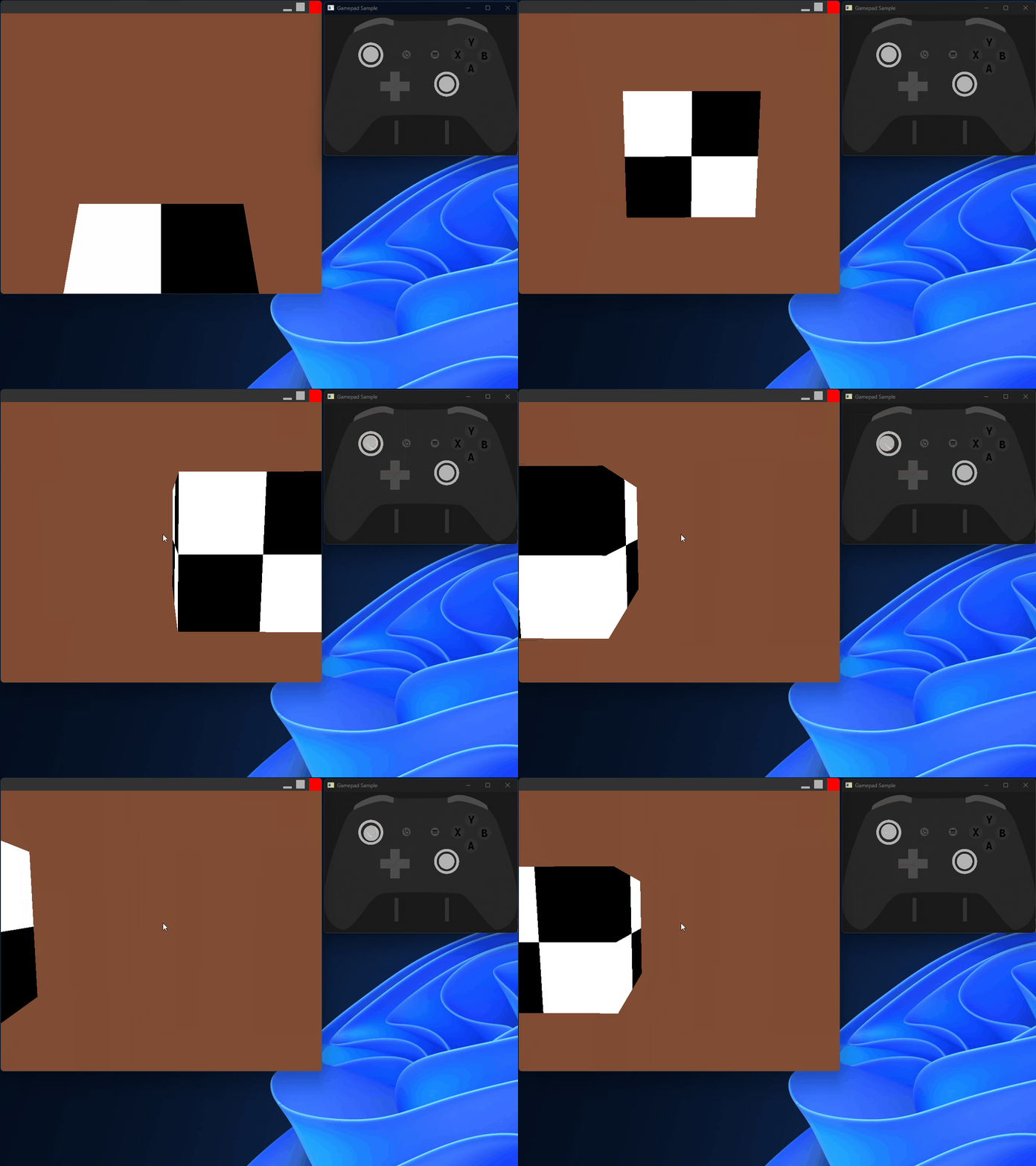
And now let's continue with using the right stick to manipulate the look direction:
// Here we ignore gamepad input if mouse is locked
if (vd_fw_get_mouse_locked()) {
    float mouse_delta_x, mouse_delta_y;
    vd_fw_get_mouse_delta(&mouse_delta_x, &mouse_delta_y);

    camera_yaw   += mouse_delta_x;
    camera_pitch -= mouse_delta_y;
} else if (vd_fw_get_gamepad_count() > 0) {
    float right_stick[2];
    vd_fw_get_gamepad_axis(0, VD_FW_GAMEPAD_RH, &right_stick[0]);
    vd_fw_get_gamepad_axis(0, VD_FW_GAMEPAD_RV, &right_stick[1]);
    camera_yaw   += right_stick[0] * ds * 100.f;
    camera_pitch -= right_stick[1] * ds * 100.f;
}
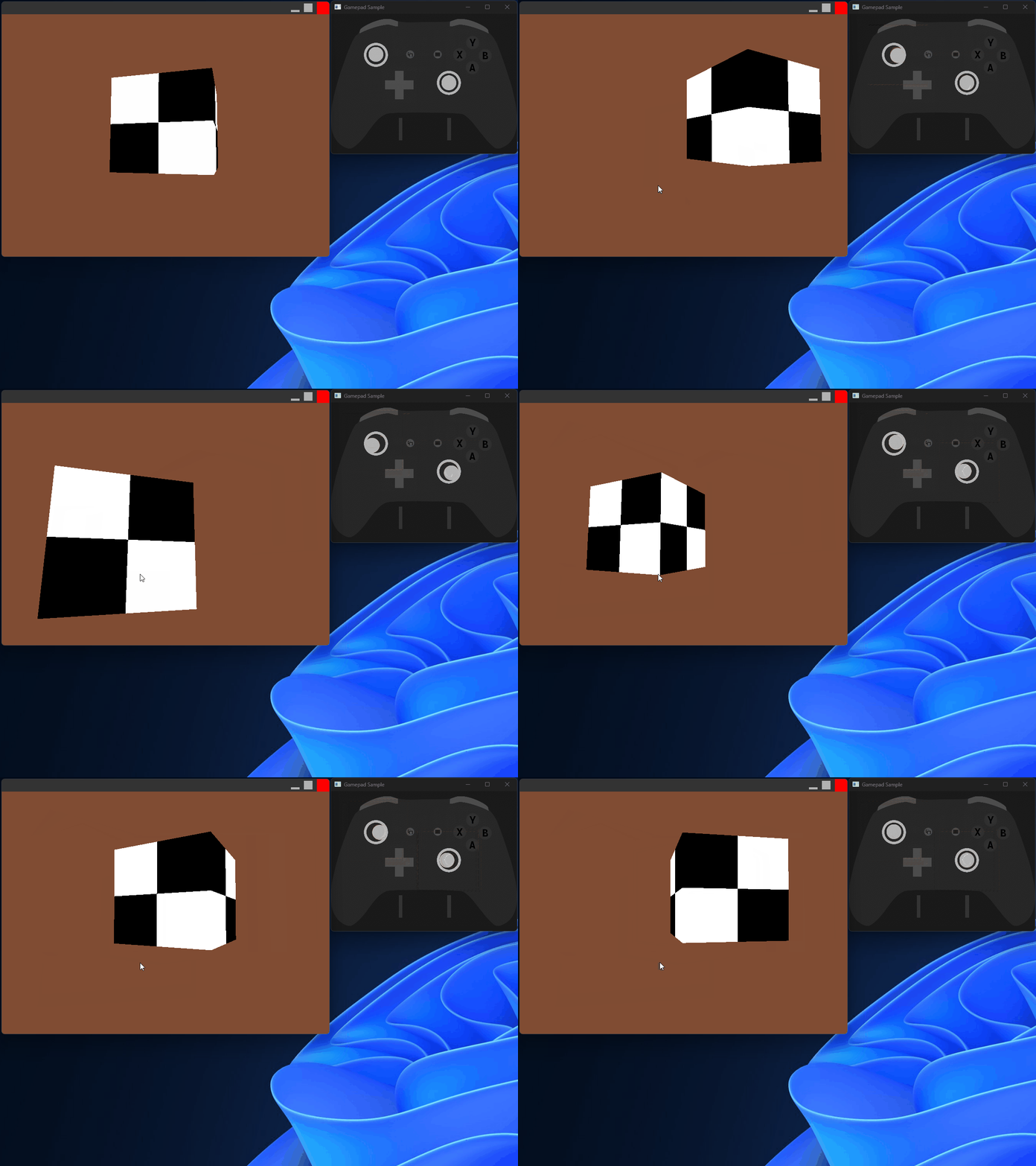
We could go on with mapping up/down to triggers, but I think you get the idea.
Of course, some controllers with either stick drift or very sensitive sticks may result in our camera moving even if we're not touching the controller. This is handled by implementing deadzones. This library will not do that for you, as radial input mapping can be very dependent on the use case of the application. But let's go through a simple linear deadzone mapping.
We will create a function that will map raw stick input to the appropriate value using a deadzone:
static void map_stick_deadzone(float input[2], float deadzone, float output[2])
{
    output[0] = output[1] = 0.f;

    float magnitude = VD_FW_SQRT(input[0] * input[0] + input[1] * input[1]);
    if ((magnitude <= 0.000001f) || (magnitude < deadzone)) {
        return;
    }

    float norm_x = input[0] / magnitude;
    float norm_y = input[1] / magnitude;

    float norm_magnitude = (magnitude - deadzone) / (1.f - deadzone);
    if (norm_magnitude > 1.f) norm_magnitude = 1.f;

    output[0] = norm_x * norm_magnitude;
    output[1] = norm_y * norm_magnitude;
}
Given a 'deadzone' parameter between 0 and 1, we map the input from [deadzone, 1] to our space, and ignore anything less that the deadzone.
Let's change the code in our input handling. In our processing of the right stick (camera rotation):
float right_stick_raw[2];
float right_stick[2];
vd_fw_get_gamepad_axis(0, VD_FW_GAMEPAD_RH, &right_stick_raw[0]);
vd_fw_get_gamepad_axis(0, VD_FW_GAMEPAD_RV, &right_stick_raw[1]);

map_stick_deadzone(right_stick_raw, DEADZONE_STICK, right_stick);

camera_yaw   += right_stick[0] * ds * 100.f;
camera_pitch -= right_stick[1] * ds * 100.f;
And we follow the same pattern for the left stick for camera movement:
float left_stick_raw[2];
float left_stick[2];
vd_fw_get_gamepad_axis(0, VD_FW_GAMEPAD_LV, &left_stick_raw[0]);
vd_fw_get_gamepad_axis(0, VD_FW_GAMEPAD_LH, &left_stick_raw[1]);

map_stick_deadzone(left_stick_raw, DEADZONE_STICK, left_stick);

fwdir -= left_stick[0];
rgdir -= left_stick[1];
Switching Graphics APIs
Apart from OpenGL, this library allows you to use other Graphics APIs. This is done by specifying the
graphics API VdFwInitInfo::api.
Options:
- OpenGL (default):
VD_FW_GRAPHICS_API_OPENGL - Custom:
VD_FW_GRAPHICS_API_CUSTOM - Software Rendering (in progress):
VD_FW_GRAPHICS_API_PIXEL_BUFFER
Additionally, you can switch graphics APIs at runtime using vd_fw_set_graphics_api:
vd_fw_set_graphics_api(VD_FW_GRAPHICS_API_CUSTOM, NULL);
A sample is provided here. Currently it switches between OpenGL and DirectX11 using the spacebar. Each graphics API will then draw a simple texture at the center of the screen to indicate which is the current API it's using:

Following is a basic overview of the code. We start with an interface struct that has function pointers that each graphics backend must support. In a real project, this would either be your RHI definitions, or the functions needed to render your scene.
typedef struct {
    GraphicsBackend backend;
    void (*init)(void *internal_window_handle);
    void (*kill)(void);
    void (*resize)(int w, int h);
    void (*draw_with_background_color)(float r, float g, float b, float a);
} GraphicsBackendImpl;

static VdFwGraphicsApi cv_graphics_backend_to_fw_graphics_api(GraphicsBackend backend)
{
    switch (backend) {
        case GRAPHICS_BACKEND_OPENGL: return VD_FW_GRAPHICS_API_OPENGL;
        default: return VD_FW_GRAPHICS_API_CUSTOM;
    }
}
Next, each implementation is declared, and an array of graphics backends is written depending on what the build target supports:
extern GraphicsBackendImpl OpenGL_Impl;
#ifdef _WIN32
extern GraphicsBackendImpl D3D11_Impl;
#endif

static GraphicsBackendImpl* Graphics_Backends[] = {
    &OpenGL_Impl,
#ifdef _WIN32
    &D3D11_Impl,
#endif
};
Afterwards, we make a function that will destroy the current API's context objects, and initialize the new API:
static void switch_to_graphics_backend(GraphicsBackendImpl *impl)
{
    if (Current_Graphics != NULL) {
        printf("Switching from %s to %s\n",
               graphics_backend_to_string(Current_Graphics->backend),
               graphics_backend_to_string(impl->backend));

        Current_Graphics->kill();
    } else {
        printf("Starting with %s\n",
               graphics_backend_to_string(impl->backend));
    }

    Current_Graphics = impl;
    VdFwOpenGLOptions options;
    options.version = VD_FW_GL_VERSION_4_5;
    options.debug_on = 1;
    vd_fw_set_graphics_api(cv_graphics_backend_to_fw_graphics_api(impl->backend), &options);

    impl->init(vd_fw_get_internal_window_handle());
}
We can set VdFwInitInfo::api to VD_FW_GRAPHICS_API_INVALID so that no
initialization is attempted during vd_fw_init, and right after call our function to switch the
backend so as to have everything following the same codepath:
VdFwInitInfo init_info = {};
init_info.api = VD_FW_GRAPHICS_API_INVALID;
vd_fw_init(&init_info);

switch_to_graphics_backend(Graphics_Backends[current_backend_index]);
In the game loop, we check for the event that will cause the graphics API to change, and after
vd_fw_swap_buffers, we switch our graphics context:
int will_switch_to_next_backend = 0;
if (vd_fw_get_key_pressed(VD_FW_KEY_SPACE)) {
    will_switch_to_next_backend = 1;
}

vd_fw_swap_buffers(); // <--- IMPORTANT: vd_fw_set_graphics_api must not be called between vd_fw_running and vd_fw_swap_buffers.

if (will_switch_to_next_backend) {
    current_backend_index += 1;
    if (current_backend_index >= count_backends) {
        current_backend_index = 0;
    }

    switch_to_graphics_backend(Graphics_Backends[current_backend_index]);
}
The rest of the code is typical graphics programming stuff (setting up buffers, textures rendering context).
Technical Details
Here I will attempt to give you a general idea about some high-impact topics regarding this library and how some functionality is implemented.
In general, the process that was followed when developing the API was to pose the question:
What is the intended/typical functionality a developer may want out of this part of a windowing/input library?
This already helps with filtering API designs based on actual real-world utility, and conformance to convetions defined by older software.
This means, for example, that unlike a lot of other libraries you don't get to figure out which OpenGL loader you need/(should use), and you just want to write a program targeting some OpenGL version, or some other graphics API. Targeting OpenGL for windowing will make sense to someone familiar with its implementation on various platforms, but the gist of it is: It's a highly platform dependent library and heavily tied to the windowing system of that platform.
Another example would be the absence of an event API. Event APIs are one of the most granular forms of generalizing a variable input matrix over non-contiguous time. But even those APIs have their limits; and that mostly has to do with the format and intended usage of the data presented to the user.
A good case for this, is handling touch gestures in a way that's consistent with the platform's vendor's Human Interface Guidelines. Typically, event based APIs will expose some kind of high-granularity touch point down/up event and some lower-granularity gestures like swipe, pinch and tap. But from what I've seen, few if any libraries actually follow the convention set by the vendor.
This of course is not entirely the author's fault; newer input APIs are generally harder to use and little to no documentation is provided by the platform vendor. But, this does not waive an input library's obligation to provide the best possible solution for a problem like viewport manipuation (scrolling, zooming, etc...).
For the sake of brevity, most libraries on Win32 will expose some events that are driven by the Message Queue related to touch, scroll and more. But I've seen no general adoption of APIs like DirectManipulation, even if bigger software packages like browsers actually support that API.
I will wager that besides the sparse documentation, the API of DirectManipulation is so different compared to an event API that its modelling on the format provided by those libraries is either an undesireable venture, or out of the defined scope of that library. As such, we're left with so many useful applications that essentially map touchpad scrolling to a virtual mousewheel and try to animate/smooth the provided scroll wheel events sent by windows to emulate this behavior.
While impressive, it will only take the user 1 second to realize that this is a non-conformant application, despite all of the effort in animating input that is essentially wrong in terms of intended usage.
Of course, as can be seen, DirectManipulation is not used in this library, but I do plan to support it as soon as possible; but a useful API to a touch interface must be formed first.
Another question that determines the API is:
Given a typical application/game on this target platform, what is the expected behavior given some user input?
For this library, one can generalize software into two domains:
- A utlity or desktop application (likely with some GUI interface), or
- A game
For applications, we can further divide expected behaviors according to the platform, but a good example is that this library will try to set the theme of your window in Win32 to the appropriate one used by the platform (Mica on Windows 11, Dark titlebar on Windows 10, and so on...).
This library tries as much as possible to provide an interface for creating applications or games that use custom window decorations (or window-chrome in Win32 nomenclature) while not blocking during resize or move operations.
Gamepads
Doing low-level gamepad input is not as easy as one would think (and maybe I should write a separate article detailing my investigation into which APIs this library should use and how), but I will briefly mention the APIs used on a per platform basis:
| Platform | APIs |
|---|---|
| Windows | RAWINPUT & XInput |
For each platform, an index of buttons, axes and pov hats is computed based on the HID parser library used by that platform. This is not guaranteed to be consistent between platforms, and as such the same mappings for every HID must be specified for all target platforms.
As a model of the controller, the XBOX Controller is used to assign a symbolic meaning to button indicies in a way that is intuitive for the developer. Additionally, several buttons aside from the XBOX ones are defined: auxiliary buttons (AUX0, AUX1, ...) and paddle buttons (LEFT_PADDLE0, RIGHT_PADDLE0, ...).
Controller mappings are defined via a gamepad database named RGCDB (with the appropriate file extension). An example of a gamepad mapping entry is provided below:
0300d0424c050000cc09000000017200,Sony DualShock 4,a:b1,b:b2,x:b0,y:b3,leftx:a2,lefty:a3,rightx:a4,righty:a7,lefttrigger:a5,righttrigger:a6,leftshoulder:b4,rightshoulder:b5,back:b8,start:b9,dpup:h0.1,dpright:h0.2,dpdown:h0.4,dpleft:h0.8,leftstick:b10,rightstick:b11,rumble:w05ff0000llhh,face:playstation,class:xbox,platform:Windows,
Compared to gamecontrollerdb.txt, the following additions were made:
- class: The classification of a controller; used to determine its capabilities
- face: The face style of a controller; the symbols for inputs present on the actual hardware
- rumble: Several directives that instruct this library on how to send rumble input
The classification of the controller is an enumeration that tries to tell the developer what kind of inputs the controller is capable of (or at least reports). They are listed below:
enum {
    VD_FW_GAMEPAD_CLASS_INVALID = 0,
    // class:nes          | 1 PoV, 2 Control, 2 System
    VD_FW_GAMEPAD_CLASS_NES,
    // class:megadrive    | 1 PoV, 3 Control, 1 System
    VD_FW_GAMEPAD_CLASS_MEGADRIVE,
    // class:genesis      | 1 PoV, 6 Control, 2 System
    VD_FW_GAMEPAD_CLASS_GENESIS,
    // class:snes         | 1 PoV, 4 Control, 2 System, 2 Symmetrical
    VD_FW_GAMEPAD_CLASS_SNES,
    // class:ps1          | 1 PoV, 4 Control, 2 System, 4 Symmetrical
    VD_FW_GAMEPAD_CLASS_PS1,
    // class:joycon       |        4 Control, 2 System, 2 Symmetrical, 1 Clickable Stick
    VD_FW_GAMEPAD_CLASS_JOYCON,
    // class:n64          | 1 PoV, 6 Control, 2 System, 2 Symmetrical, 1 Stick
    VD_FW_GAMEPAD_CLASS_N64,
    // class:ps2          | 1 PoV, 4 Control, 2 System, 4 Symmetrical, 2 Clickable Sticks
    VD_FW_GAMEPAD_CLASS_PS2,
    // class:xbox         | 1 PoV, 4 Control, 2 System, 2 Symmetrical, 2 Clickable Sticks, 2 Symmetrical Axes
    VD_FW_GAMEPAD_CLASS_XBOX,
    // class:ps4          | 1 PoV, 4 Control, 2 System, 2 Symmetrical, 2 Clickable Sticks, 2 Symmetrical Axes, 1 Touchpad
    VD_FW_GAMEPAD_CLASS_PS4,
    // class:steamdeck    | 1 PoV, 4 Control, 2 System, 6 Symmetrical, 2 Clickable Sticks, 2 Symmetrical Axes, 2 Touchpads
    VD_FW_GAMEPAD_CLASS_STEAMDECK,
    VD_FW_GAMEPAD_CLASS_MAX,
};
typedef VdFwU8 VdFwGamepadClass;
The available gamepad face values indicate the styling of the buttons and axes indicated on the controller hardware. Here they are:
enum {
    VD_FW_GAMEPAD_FACE_UNKNOWN = 0,
    VD_FW_GAMEPAD_FACE_NUMBERED,    /* face:numbered */
    VD_FW_GAMEPAD_FACE_XBOX,        /* face:xbox */
    VD_FW_GAMEPAD_FACE_PLAYSTATION, /* face:playstation */
    VD_FW_GAMEPAD_FACE_NINTENDO,    /* face:nintendo */
    VD_FW_GAMEPAD_FACE_MAX,
};
On Windows, due to legacy reasons HIDs will report triggers as a single axis value and thus they cannot be both pressed at the same time, by just using raw input. To circumvent this, this library (as well as SDL and many other libraries) correlate mapped gamepad inputs with the XInput controller states to determine which "dwUserIndex" was assigned to the controller by XInput. Once that is done, the trigger values are then retrieved through that API for the remainder of the application's lifetime.
The game controller db mappings can be loaded from a text string via:
vd_fw_add_gamepad_rgcdb(const char *text, int text_len);
or:
vd_fw_add_gamepad_db_entry(VdFwGamepadDBEntry *entry);
Deadzones are not handled regarding axial inputs. This will be a separate set of functions that will filter gamepad input data, because deadzones can have different implementations based on the game's requirements.
For debugging, a sample utility program was written to test controller inputs. You can find it here. Additionally, for Windows, an HID dump utility exists here.
Reference
Input Mappings
This is a complete list of all possible input mappings supported by this library.
Alternatively, click below to open an interactive interface:
Here's all the mapped keybindings. For most of them, considerations were taken to map the values to ASCII symbols that correspond to the physical key on a US ANSI/ISO keyboard layout.
enum {
    VD_FW_KEY_UNKNOWN       = 0,
    VD_FW_KEY_F1            = 1,
    VD_FW_KEY_F2            = 2,
    VD_FW_KEY_F3            = 3,
    VD_FW_KEY_F4            = 4,
    VD_FW_KEY_F5            = 5,
    VD_FW_KEY_F6            = 6,
    VD_FW_KEY_F7            = 7,
    VD_FW_KEY_F8            = 8,
    VD_FW_KEY_F9            = 9,
    VD_FW_KEY_F10           = 10,
    VD_FW_KEY_F11           = 11,
    VD_FW_KEY_F12           = 12,
    VD_FW_KEY_F13           = 13,
    VD_FW_KEY_F14           = 14,
    VD_FW_KEY_F15           = 15,
    VD_FW_KEY_F16           = 16,
    VD_FW_KEY_F17           = 17,
    VD_FW_KEY_F18           = 18,
    VD_FW_KEY_F19           = 19,
    VD_FW_KEY_F20           = 20,
    VD_FW_KEY_F21           = 21,
    VD_FW_KEY_F22           = 22,
    VD_FW_KEY_F23           = 23,
    VD_FW_KEY_F24           = 24,
    VD_FW_KEY_BACKSPACE     = 25,
    VD_FW_KEY_INS           = 26,
    VD_FW_KEY_HOME          = 27,
    VD_FW_KEY_PGUP          = 28,
    VD_FW_KEY_DEL           = 29,
    VD_FW_KEY_END           = 30,
    VD_FW_KEY_PGDN          = 31,
    VD_FW_KEY_SPACE         = 32,  // ' '
    VD_FW_KEY_LCONTROL      = 33,
    VD_FW_KEY_RCONTROL      = 34,
    VD_FW_KEY_LALT          = 35,
    VD_FW_KEY_RALT          = 36,
    VD_FW_KEY_LSHIFT        = 37,
    VD_FW_KEY_RSHIFT        = 38,
    VD_FW_KEY_QUOTE         = 39,  // '\''
    VD_FW_KEY_ARROW_UP      = 40,
    VD_FW_KEY_ARROW_LEFT    = 41,
    VD_FW_KEY_ARROW_DOWN    = 42,
    VD_FW_KEY_ARROW_RIGHT   = 43,
    VD_FW_KEY_COMMA         = 44,  // ','
    VD_FW_KEY_MINUS         = 45,  // '-'
    VD_FW_KEY_DOT           = 46,  // '.'
    VD_FW_KEY_SLASH_FORWARD = 47,  // '/'
    VD_FW_KEY_0             = 48,  // '0'
    VD_FW_KEY_1             = 49,  // '1'
    VD_FW_KEY_2             = 50,  // '2'
    VD_FW_KEY_3             = 51,  // '3'
    VD_FW_KEY_4             = 52,  // '4'
    VD_FW_KEY_5             = 53,  // '5'
    VD_FW_KEY_6             = 54,  // '6'
    VD_FW_KEY_7             = 55,  // '7'
    VD_FW_KEY_8             = 56,  // '8'
    VD_FW_KEY_9             = 57,  // '9'
    VD_FW_KEY_ENTER         = 58,
    VD_FW_KEY_SEMICOLON     = 59,  // ';'
    VD_FW_KEY_TAB           = 60,
    VD_FW_KEY_EQUALS        = 61,  // '='
    VD_FW_KEY_CAPITAL       = 62,
    VD_FW_KEY_ESCAPE        = 63,
    VD_FW_KEY_RESERVED1     = 64,  // '@'
    VD_FW_KEY_A             = 65,  // 'A'
    VD_FW_KEY_B             = 66,  // 'B'
    VD_FW_KEY_C             = 67,  // 'C'
    VD_FW_KEY_D             = 68,  // 'D'
    VD_FW_KEY_E             = 69,  // 'E'
    VD_FW_KEY_F             = 70,  // 'F'
    VD_FW_KEY_G             = 71,  // 'G'
    VD_FW_KEY_H             = 72,  // 'H'
    VD_FW_KEY_I             = 73,  // 'I'
    VD_FW_KEY_J             = 74,  // 'J'
    VD_FW_KEY_K             = 75,  // 'K'
    VD_FW_KEY_L             = 76,  // 'L'
    VD_FW_KEY_M             = 77,  // 'M'
    VD_FW_KEY_N             = 78,  // 'N'
    VD_FW_KEY_O             = 79,  // 'O'
    VD_FW_KEY_P             = 80,  // 'P'
    VD_FW_KEY_Q             = 81,  // 'Q'
    VD_FW_KEY_R             = 82,  // 'R'
    VD_FW_KEY_S             = 83,  // 'S'
    VD_FW_KEY_T             = 84,  // 'T'
    VD_FW_KEY_U             = 85,  // 'U'
    VD_FW_KEY_V             = 86,  // 'V'
    VD_FW_KEY_W             = 87,  // 'W'
    VD_FW_KEY_X             = 88,  // 'X'
    VD_FW_KEY_Y             = 89,  // 'Y'
    VD_FW_KEY_Z             = 90,  // 'Z'
    VD_FW_KEY_BRACKET_OPEN  = 91,  // '['
    VD_FW_KEY_SLASH_BACK    = 92,  // '\\'
    VD_FW_KEY_BRACKET_CLOSE = 93,  // ']'
    VD_FW_KEY_MEDIA_NEXT    = 94,  // Media Next Track
    VD_FW_KEY_MEDIA_PREV    = 95,  // Media Prev Track
    VD_FW_KEY_BACKTICK      = 96,  // '`'
    VD_FW_KEY_MEDIA_PLAY    = 97,  // Media Play/Pause
    VD_FW_KEY_NUMPAD_0      = 98,  // Numpad 0
    VD_FW_KEY_NUMPAD_1      = 99,  // Numpad 1
    VD_FW_KEY_NUMPAD_2      = 100, // Numpad 2
    VD_FW_KEY_NUMPAD_3      = 101, // Numpad 3
    VD_FW_KEY_NUMPAD_4      = 102, // Numpad 4
    VD_FW_KEY_NUMPAD_5      = 103, // Numpad 5
    VD_FW_KEY_NUMPAD_6      = 104, // Numpad 6
    VD_FW_KEY_NUMPAD_7      = 105, // Numpad 7
    VD_FW_KEY_NUMPAD_8      = 106, // Numpad 8
    VD_FW_KEY_NUMPAD_9      = 107, // Numpad 9
    VD_FW_KEY_MAX,
};
For the mouse, the following bit masks may be used:
enum {
    VD_FW_MOUSE_STATE_LEFT_BUTTON_DOWN   = 1 << 0,
    VD_FW_MOUSE_STATE_RIGHT_BUTTON_DOWN  = 1 << 1,
    VD_FW_MOUSE_STATE_MIDDLE_BUTTON_DOWN = 1 << 2,
    VD_FW_MOUSE_STATE_M1_BUTTON_DOWN     = 1 << 3,
    VD_FW_MOUSE_STATE_M2_BUTTON_DOWN     = 1 << 4,

    VD_FW_MOUSE_BUTTON_LEFT   = VD_FW_MOUSE_STATE_LEFT_BUTTON_DOWN,
    VD_FW_MOUSE_BUTTON_RIGHT  = VD_FW_MOUSE_STATE_RIGHT_BUTTON_DOWN,
    VD_FW_MOUSE_BUTTON_MIDDLE = VD_FW_MOUSE_STATE_MIDDLE_BUTTON_DOWN,
    VD_FW_MOUSE_BUTTON_M1     = VD_FW_MOUSE_STATE_M1_BUTTON_DOWN,
    VD_FW_MOUSE_BUTTON_M2     = VD_FW_MOUSE_STATE_M2_BUTTON_DOWN,
};
This library supports at most 32 gamepad buttons and 6 axes (as of writing), as well as a game controller mapping database akin to gamecontrollerdb.txt. Regarding HIDs, it supports any amount of buttons, axes and PoV hats, but only 64 buttons, 6 axes and 1 PoV hat can be mapped right now. This is subject to change.
The following buttons can be mapped:
enum {
    // XBox Style Buttons
    VD_FW_GAMEPAD_UNKNOWN = 0,
    VD_FW_GAMEPAD_A,
    VD_FW_GAMEPAD_B,
    VD_FW_GAMEPAD_X,
    VD_FW_GAMEPAD_Y,
    VD_FW_GAMEPAD_DUP,
    VD_FW_GAMEPAD_DDOWN,
    VD_FW_GAMEPAD_DLEFT,
    VD_FW_GAMEPAD_DRIGHT,
    VD_FW_GAMEPAD_START,
    VD_FW_GAMEPAD_BACK,
    VD_FW_GAMEPAD_LEFT_SHOULDER,
    VD_FW_GAMEPAD_RIGHT_SHOULDER,
    VD_FW_GAMEPAD_LEFT_STICK,
    VD_FW_GAMEPAD_RIGHT_STICK,
    VD_FW_GAMEPAD_LEFT_PAD0,
    VD_FW_GAMEPAD_RIGHT_PAD0,
    VD_FW_GAMEPAD_LEFT_PAD1,
    VD_FW_GAMEPAD_RIGHT_PAD1,
    VD_FW_GAMEPAD_LEFT_PAD2,
    VD_FW_GAMEPAD_RIGHT_PAD2,
    VD_FW_GAMEPAD_AUX0,
    VD_FW_GAMEPAD_AUX1,
    VD_FW_GAMEPAD_AUX2,
    VD_FW_GAMEPAD_AUX3,
    VD_FW_GAMEPAD_AUX4,
    VD_FW_GAMEPAD_AUX5,
    VD_FW_GAMEPAD_AUX6,
    VD_FW_GAMEPAD_AUX7,
    VD_FW_GAMEPAD_AUX8,
    VD_FW_GAMEPAD_AUX9,
    VD_FW_GAMEPAD_BUTTON_MAX,

    // Playstation Style Buttons
    VD_FW_GAMEPAD_CROSS    = VD_FW_GAMEPAD_A,
    VD_FW_GAMEPAD_CIRCLE   = VD_FW_GAMEPAD_B,
    VD_FW_GAMEPAD_SQUARE   = VD_FW_GAMEPAD_X,
    VD_FW_GAMEPAD_TRIANGLE = VD_FW_GAMEPAD_Y,
    VD_FW_GAMEPAD_SELECT   = VD_FW_GAMEPAD_BACK,
    VD_FW_GAMEPAD_L1       = VD_FW_GAMEPAD_LEFT_SHOULDER,
    VD_FW_GAMEPAD_R1       = VD_FW_GAMEPAD_RIGHT_SHOULDER,
    VD_FW_GAMEPAD_L3       = VD_FW_GAMEPAD_LEFT_STICK,
    VD_FW_GAMEPAD_R3       = VD_FW_GAMEPAD_RIGHT_STICK,

    VD_FW_GAMEPAD_H = 0 >> 1,
    VD_FW_GAMEPAD_V = 2 >> 1,
    VD_FW_GAMEPAD_L = 0 << 1,
    VD_FW_GAMEPAD_R = 1 << 1,
    VD_FW_GAMEPAD_LH = VD_FW_GAMEPAD_L | VD_FW_GAMEPAD_H,
    VD_FW_GAMEPAD_LV = VD_FW_GAMEPAD_L | VD_FW_GAMEPAD_V,
    VD_FW_GAMEPAD_RH = VD_FW_GAMEPAD_R | VD_FW_GAMEPAD_H,
    VD_FW_GAMEPAD_RV = VD_FW_GAMEPAD_R | VD_FW_GAMEPAD_V,
    VD_FW_GAMEPAD_L2 = 4,
    VD_FW_GAMEPAD_R2 = 5,
    VD_FW_GAMEPAD_LT = VD_FW_GAMEPAD_L2,
    VD_FW_GAMEPAD_RT = VD_FW_GAMEPAD_R2,
    VD_FW_GAMEPAD_AXIS_MAX,
};
Initialize fw. Call this before any other call
| info | Custom options when initializing. Leave null for default |
| Returns | (Reserved) |
Check if the application is running. Call this every frame
| Returns | 1 if running, 0 if not |
End rendering and swap buffers. Call this right at the end of your rendering code.
| Returns | (Reserved) |
Get if the user requested to close the window
| Returns | Whether the user tried to close the window this frame |
Close the window and end the rendering loop
Get the current platform.
| Returns | The current platform. |
Switch the current graphics API (must not be called between vd_fw_running and vd_fw_swap_buffers)
| api | The new API to use |
| gl_options | If api is VD_FW_GRAPHICS_API_OPENGL, the options for OpenGL |
Get the size of the window, in pixels
| w | The width of the window, in pixels |
| h | The height of the window, in pixels |
| Returns | 1 if the size changed this frame, 0 otherwise |
Set the window size, in pixels
| w | The width of the window, in pixels |
| h | The height of the window, in pixels |
Set minimum window size, in pixels.
| w | The minimum width of the window, set to 0 to use default. |
| h | The minium height of the window, set to 0 to use default. |
Set maximum window size, in pixels.
| w | The maximum width of the window, set to 0 to use default. |
| h | The maxium height of the window, set to 0 to use default. |
Get if the window is minimized
| minimized | Whether the window is minimized |
| Returns | 1 if the minimization state of the window was changed |
Minimize the window
Get if the window is maximized
| maximized | Whether the window is maximized |
| Returns | 1 if the maximization state of the window was changed |
Maximize the window
Restores the window state, if it's minimized or maximized
Enter/exit fullscreen.
| on | Whether to enter or exit fullscreen. |
Get current fullscreen state.
| Returns | 1 if in fullscreen, 0 otherwise. |
Gets whether the window is focused
| focused | Pointer to int which will receive the value of focus |
| Returns | 1 if the focus has changed. There's no point in checking the value of focused otherwise. |
Set the draggable area of the window, any sub-rectangles to ignore
| caption | The whole draggable area |
| count | The count of sub-rectangles that will be excluded from dragging |
| rects | An array of count rectangles to exclude |
Set to receive mouse events outside of the non-client area
| on | if you want to receive those events, 0 otherwise (default) |
Gets the backing scale factor
| Returns | The backing scale factor (1.0f: 1:1 scale, 2.0f, 2:1 scale, etc...) |
Set the title of the window
| title | The new title of the window |
Set the icon of the window and application
| pixels | A packed A8R8G8B8 pixel buffer |
| width | The width of the icon, in pixels, must be at least 16px |
| height | The height of the icon, in pixels, must be at least 16px |
Get the time (in nanoseconds) since the last call to vd_fw_swap_buffers
| Returns | The delta time (in nanoseconds) |
Get the time (in seconds) since the last call to vd_fw_swap_buffers
| Returns | The delta time (in seconds) |
Set the number of frames to sync on
| on | Use: 0 for no sync, 1 for sync every frame and 2 for sync every other frame |
| Returns | 1 if the change was applied successfully |
Get the fully-qualified path to the executable without the last path separator
| len | Length of the UTF-8 string, in bytes |
| Returns | A callee-allocated string. There's no need to free it |
Get the total count of monitors. Monitor 0 is the primary monitor of the display
| Returns | The count of all the monitors |
Get the monitor's friendly name via EDID
| index | The monitor index |
| Returns | The monitor name |
(Warning: slow) Get the available display modes of the monitor
| index | The monitor index |
| count | The total count of display modes |
| Returns | Sorted display modes |
Read the mouse state.
| x | The horizontal position of the mouse, in pixels (left -> right) |
| y | The vertical position of the mouse, in pixels (top -> bottom) |
| Returns | The mouse button state |
Read the mouse state (float version).
| x | The horizontal position of the mouse, in pixels (left -> right) |
| y | The vertical position of the mouse, in pixels (top -> bottom) |
| Returns | The mouse button state |
Get whether the mouse button is down
| button | The button |
| Returns | 1 if the button is down, 0 otherwise |
Get if the supplied button was just clicked
| button | The button to check |
| Returns | Whether the button was clicked last frame |
Get if the supplied button was just released
| button | The button check |
| Returns | Whether the button was released last frame |
Capture mouse and receive events outside of the window region.
| on | Whether to set this behavior on (default: off). |
Get the mouse movement in raw smoothed pixels. Use this over computing delta yourself.
| dx | The horizontal delta movement of the mouse |
| dy | The vertical delta movement of the mouse |
Lock/Unlock the mouse to the center of the window, hiding its cursor
| locked | Whether to lock or unlock the mouse (default: unlocked) |
Gets whether the mouse is locked (by vd_fw_set_mouse_locked).
| Returns | Whether the mouse is locked (1 or 0) |
Read the mouse wheel state.
| dx | The delta of horizontal wheel (either trackpad swipe right, or ctrl + mousewheel) |
| dy | The delta of vertical wheel |
| Returns | 1 if the wheel moved, 0 if not |
Get whether a key was just pressed this frame
| key | The key to check |
| Returns | Whether this key was pressed this frame |
Get the last known state of this key
| key | The key to check |
| Returns | Whether this key is down currently |
Convert key to string.
| k | The key |
| Returns | The key's name |
Gets the number of gamepads currently connected
| Returns | The number of currently connected gamepads |
Gets the state for a Gamepad button (digital)
| index | The gamepad index |
| button | The gamepad button to check |
| Returns | 1 for On, 0 for Off |
Gets whether the Gamepad button was just pressed this frame
| index | The gamepad index |
| button | The gamepad button to check |
| Returns | 1 if the button was just pressed this frame, 0 otherwise |
Gets the gamepad's axis value
| index | The gamepad index |
| axis | The axis to check |
| out | The axis value [-1, 1] for directional axes (VD_FW_GAMEPAD_LH, etc..), [0, 1] for triggers |
| Returns | (Reserved) |
Set the state of a gamepad's force-feedback motors
| index | The gamepad index |
| rumble_lo | The value of the small/left motor [0, 1] |
| rumble_hi | The value of the big/right motor [0, 1] |
Get the gamepad's GUID
| index | The gamepad index |
| Returns | The guid |
Get the detected gamepad's face type (i.e. the symbols shown on the physical controller)
| index | The gamepad index |
| Returns | The face type |
Convert gamepad face type to string
| face | The face type |
| Returns | The face type as a string |
Get the detected gamepad's classification (i.e. a rough ordered value of the gamepad's capabilities)
| index | The gamepad index |
| Returns | The class type |
Convert gamepad class type to string
| klass | The class type |
| Returns | The class type as a string |
Get whether this gamepad supports rumble
| index | The gamepad index |
| Returns | 1 if the gamepad supports rumble, 0 otherwise |
Parse and register gamepad entries from a RGCDB file
| text | The text file |
| text_len | The text file length in bytes |
Parse an RGCDB entry ascii string, can be called without initializing this library
| s | The string |
| s_len | The string's length, in bytes |
| out | The db entry info |
| out_platform | The platform for which this entry is valid |
| out_begin_name | The start of the name part of this gamepad (unused in db entries) |
| Returns | 1 for Success, 0 otherwise |
Check if a map entry is a terminating entry. Use to iterate over vd_fw_parse_gamepad_db_entry results
| entry | The entry |
| Returns | 1 if the entry is a terminating entry |
Add an entry to the runtime gamepad db
| entry | The entry to add |
| Returns | (Reserved) |
Turn On/Off raw button/axis/hat reports
| on | Whether to enable this behavior |
Get the raw state of all axes on this gamepad (scaled to [0,1])
| index | The gamepad index |
| count_axes | The number of axes |
| Returns | A callee-allocated float array of axis values |
Get the number of characters sent by the user
| Returns | The count of characters. At most VD_FW_CODEPOINT_BUFFER_COUNT |
Get the i'th character as a UTF-32 codepoint
| index | The character index |
| Returns | The Unicode codepoint |
Returns a pointer to the window handle allocated by the library
| Returns | Win32(HWND*), MacOS(NSWindow*), X11(Window*) |
Compile a GLSL shader and check for errors
| type | The shader type |
| source | The shader source code |
| Returns | The shader handle |
Link a GL program and check for errors
| program | The program to link |
| Returns | 1 on success, 0 otherwise |
Compiles a program, if any of the shader sources have been modified. You should call this every frame
| program | Pointer to program (GLuint), initialize it to zero before rendering loop |
| last_compile | Pointer to last compilation time, initialize it to zero before rendering loop, and don't use it in any other way |
| vertex_file_path | The relative (or absolute) path to the vertex shader source |
| fragment_file_path | The relative (or absolute) path to the fragment shader source |
| Returns | 1 if successful, 0 if encountered any breaking error. You don't really need to check this. |
Construct an orthographic projection matrix
| left | The left side |
| right | The right side |
| top | The top side |
| bottom | The bottom side |
| near | The near plane |
| far | The far plane |
| out | The output matrix |
Construct a perspective projection matrix
| fov | The vertical fov, in degrees |
| aspect | The aspect ratio |
| far | The far plane |
| near | The near plane |
| out | The output matrix |
Construct a view matrix
| eye | Position of the camera |
| target | Look target position |
| updir | The up direction |
| out | The output matrix |